Want to win more jobs with less effort?
Grow your business and send quick quotes with our home service software.

Want to see your potential revenue?
See what businesses like yours earn with Housecall Pro in 1 - 2 minutes.

When a homeowner’s water heater stops working, they may Google “plumber near me” and compare the businesses that show up. Your Google Business Profile gives them a quick look at your services, reviews, and contact information before they decide who to call.
An outdated phone number, missing hours, or unclear service list can make that decision harder. This guide walks you through 12 ways to improve your profile and help local homeowners find and contact your business.

Score your online presence
See how visible and trustworthy your business looks online.
Quick answer: How do you optimize a Google business profile?
To optimize a Google Business Profile, claim and verify it, choose a category that matches your main work, and add accurate services, hours, and contact details. If you travel to customers, set your service area and hide your address if customers don’t visit you there. Keep the profile useful with recent job photos, honest customer reviews, and timely replies.
Table of contents
- How Google ranks local results
- Why your Google Business Profile matters for a home service business
- 12 ways to optimize your Google Business Profile
- How to track your Google Business Profile results
- Mistakes to avoid for contractors struggling with Google Business Profile optimization
- Google Business Profile category and tips by trade
- Turn Google Business Profile views into booked jobs
How Google ranks local results
Google ranks local results using three factors: relevance, distance, and prominence. Here’s what each factor means for your business:
- Relevance is how closely your profile matches what someone searches for. Listing specific services such as air conditioning repair helps Google understand what your HVAC business does.
- Distance is how far you are from the person searching. For a search such as “electrician near me,” Google considers the distance between the searcher and nearby businesses.
- Prominence is how well-known your business is. Google says it considers how many websites link to you and how many reviews you have. A plumber with 300 recent reviews looks more established than one with 12.
Whitespark’s 2026 Local Search Ranking Factors asked local search experts which factors matter most for appearing in Google’s map results. Choosing the right primary business category was No. 1 on the list. High star ratings and the number of written Google reviews also ranked in the top 10.
Note: Improving the information on your profile gives you a better chance of ranking, but it’s not a guarantee. Showing up more often in local searches takes time, so don’t get discouraged if results don’t come right away.
Why your Google Business Profile matters for a home service business
Homeowners use Google Business Profiles to compare service companies near them. They check your star rating, services, hours, and reviews. A complete profile helps them answer practical questions: Do you handle their problem? Do you serve their neighborhood? How can they reach you?
BrightLocal’s Local Consumer Review Survey 2026 found that 97% of consumers read reviews online, and 74% look for reviews written in the last three months. Asking for feedback regularly gives potential customers a more current picture of your work.
Review volume can also help a newer company stand out against competitors who have been around for decades.
Learn more: How to respond to negative reviews
12 ways to optimize your Google Business Profile
Whether you’re setting up your profile or updating one you’ve had for years, these 12 steps can help your business show up more often in local Google searches.
1. Claim and verify your profile
Search for your business name and city on Google Maps. If an unverified listing exists, select “Claim this business,” then “Manage now.” If none exists, add your business at business.google.com/add.
If someone else has already claimed and verified your listing, follow Google’s process to request ownership. Check for an existing profile before creating a new one so you don’t end up with duplicates.
Next, follow the verification steps Google offers for your business. Depending on your profile, available methods may include phone or text, email, live video, video recording, or postcard. Google chooses the available methods, and you may need to use more than one.
Google says most postcard codes arrive within 14 days, and codes expire after 30 days. After you finish the steps, Google’s review can take up to 5 business days.
Learn more: How to verify your Google Business Profile
2. Choose the right primary category and add secondary ones
Choose the most specific primary category that describes your main business. If most of your work is general plumbing, choose “Plumber,” even if you also install water heaters. A business focused on water heater installation may need a different primary category.
Here are a few examples by trade:
- Plumbing: Plumber
- HVAC: HVAC contractor (or a more specific category, such as Heating contractor, if that better describes your business)
- Electrical: Electrician
You can add up to 10 categories, but Google recommends keeping them limited. Choose only those that describe your business. List individual jobs, such as drain cleaning or faucet installation, under services.
3. Set your service area instead of showing a home address
If you travel to customers and don’t serve them at your business address, set up a service-area profile to show where you work without displaying your home address. If you also serve customers at a staffed shop, check Google’s location requirements before displaying that address.
To set service areas, open your profile, select Edit profile, then Location, and edit the service area. Google allows up to 20 service areas. Use cities or ZIP codes, not a radius, and stay within about two hours of driving from your base. Changes can take up to 48 hours to appear.
List the areas where you’re willing and able to take jobs. Don’t add a nearby city just because you’d like to rank there.
Learn more: What is a service area?
4. Use your real business name
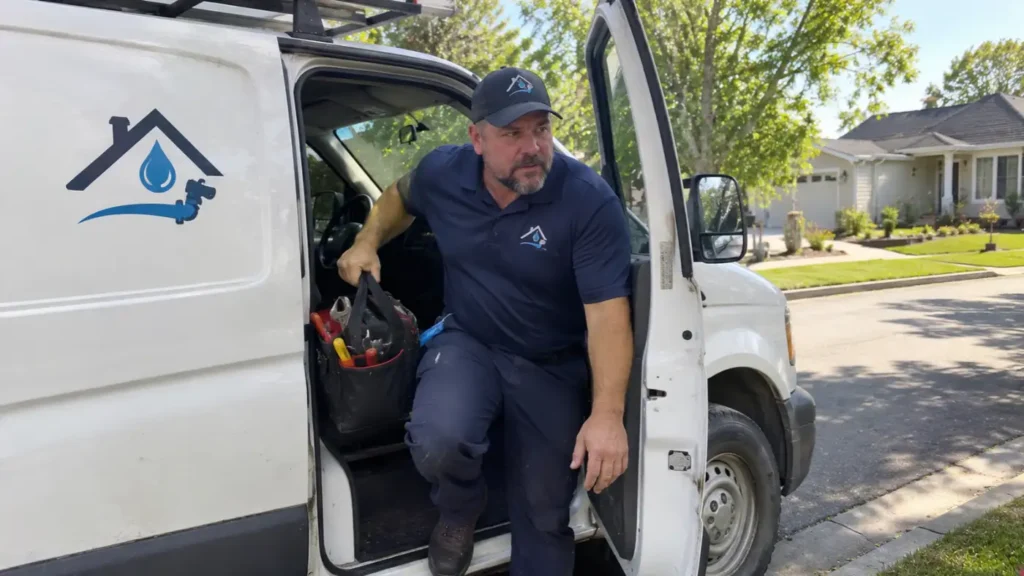
Your profile name should match the name on your truck, invoices, and signs. Leave out extra keywords, taglines, phone numbers, URLs, and hours that aren’t part of your actual business name. For example, use “Smith Plumbing” if that’s your business name, rather than “Smith Plumbing – Top Plumber Dallas 24/7.” Adding unnecessary details can get your profile suspended.
Use the service area, category, and hours fields to share those details instead.
5. Write a clear business description
Include what you do, where you work, and what customers should know about your business. You might mention how long you’ve been in business or that you’re licensed and insured. Keep it brief and skip sales language, promotions, and links; Google doesn’t allow links in business descriptions. Check the character counter as you write.
Here’s a sample description for a plumbing business:
“Family-owned plumbing company serving Plano, Frisco, and McKinney since 2012. Licensed and insured. We repair leaks, clogged drains, and water heaters. Call or book online.”
6. List every service you offer
Add each service as its own entry with a short description. In your profile, select “Edit services,” then choose a suggested service or add a custom one if needed. Leave prices and phone numbers out of the service name.
Sample service entries for a plumber:
- Water heater repair and replacement: Tank and tankless units, gas and electric
- Drain cleaning: Kitchen, bathroom, and main line clogs
- Leak detection and repair: Pipe, fixture, and slab leaks
- Toilet and faucet installation: New fixtures installed, old ones removed
- Sewer line inspection: Camera inspection with a written report
List only services you actually provide.
7. Add accurate hours, phone number, website, and booking link
Follow Google’s guidelines carefully here—many customers book directly from the business profile, so your website and hours must be correct. Check that your phone number works, your website link opens the right page, and your hours reflect when you’re available to serve customers. Update your profile as soon as anything changes so you don’t miss jobs.
- Hours: Set your regular hours. Use special hours for holidays, and list the hours you answer emergency calls. Claim 24/7 availability only if you actually provide service around the clock.
- Phone: Add a local number you control instead of a call center line. Google recommends a local number when possible. Make sure someone answers during your listed hours, and add a dedicated emergency number if you use one.
- Website: Enter the full URL, including https://, and check that the page works on a phone.
- Booking link: Some categories can add extra links, such as for appointments. If yours shows that option, add your online booking link.
- Attributes: Select the details that apply to your business, such as available service options.
Allowing customers to book right from Google Search and Maps can save your team time. AJ D. of Junk Fairy says Housecall Pro’s Online Booking, which connects to their Google Business Profile, does that for the team:
See how Reserve with Google works.
8. Add real photos and videos of your work
Useful photos include finished jobs, before-and-after shots, your trucks, and your team on the job. Make sure your photos are clear and well lit, without heavy filters. Use JPG or PNG files between 10 KB and 5 MB, and videos up to 30 seconds.
Add a few new photos as you finish jobs. A clean water heater installation or a freshly landscaped yard can help homeowners see the kind of work you do, and regular updates help to keep your profile fresh.
Pro tip: Take the “before” photo when you arrive and the “after” photo before you pack up. Ask the customer’s permission before taking or sharing photos, and leave out house numbers, faces, and personal items.
9. Ask for reviews after every job
Reviews build trust and show what it’s like to work with you. Google says that more reviews and positive ratings can help your local ranking.
Ask for reviews right after completing each job, while the experience is fresh. Include a direct link so they don’t have to search for your business. Look for the review-sharing option in your profile to copy the link.
Here’s a sample text your techs can send after every job:
“Hi Maria, thanks for choosing Smith Plumbing today. Would you leave us a quick Google review? Here’s the link: [link]. It helps other homeowners find us. Thank you!”
Send the same request to customers regardless of whether you expect positive or negative feedback. Google’s policies don’t allow incentives, so don’t offer discounts, gifts, or drawing entries.
With Housecall Pro’s Review Management, you can automatically send review requests after completed jobs. Housecall Pro customers generate an average of 40 customer reviews per year.*
*Of those who received at least one review.
Learn more: How reviews help SEO
Get In Touch: 858-842-5746
Let us earn your trust
On average, Pros increase monthly revenue generated through Housecall Pro by more than 35% after their first year.
See plan options and feature breakdown on our pricing page.
10. Reply to every review
Thank customers for positive feedback and respond calmly when someone raises a concern. Your reply helps future customers see how you treat people when a job goes well and when something needs attention. Keep replies short and specific, use the customer’s first name, and don’t share private details.
Here’s a sample reply to a positive review:
“Thanks, Mark. We’re glad the new water heater is working well. Our tech, Luis, will be happy to hear it.”
Here’s an example of how to properly respond to a negative review:
“Hi Molly, we’re sorry the repair took longer than we told you. Please call our office at 555-0100 so we can learn more and work out the next steps.”
Avoid arguing in public. Acknowledge the concern and invite the customer to contact your office so you can discuss the details privately. If a review violates Google’s policies, you can flag it for removal. A low rating alone isn’t grounds for removal.
Learn more: How to remove bad Google reviews
11. Use Google Business Profile posts to share updates and offers
Google offers three post types: updates, offers, and events. Use them to share helpful seasonal advice, recent work, or a promotion you’re running.
Here are two example posts:
- Plumber:“Freezing weather in the forecast? Here’s how to help protect your pipes.” Include a link to your winter plumbing tips.
- Electrician: We just finished this panel upgrade in Frisco. Take a look at the before-and-after photos.” Share photos with the customer’s permission.
Start with a schedule you can keep, such as one useful post a month. Add updates when you have something timely to share.
Google archives posts older than 6 months unless you set a date range, and you can schedule posts in advance.
12. Keep your information consistent across directories
Use the same business name, service area, phone number, and services on your website, social profiles, and directories. If one listing has an old number or says you serve an area you’ve dropped, customers may struggle to reach you or book work you can’t take. If you switch to a new office number, update Facebook, Yelp, and your website footer the same day.
Learn more: Which review sites matter most?
How to track your Google Business Profile results
Check your performance report at least once a month. Open your profile on Google Search and select Performance. Google reports these measures when they apply to your business:
- Views: People who viewed your profile on Search and Maps
- Calls: Taps on the call button
- Website clicks: Clicks on your website link
- Directions: Requests for directions
- Searches: The terms people used to find you, updated monthly
Record the numbers each month so you can spot changes over time. Keep in mind that weather and seasonal demand can affect results, especially for HVAC, landscaping, and other seasonal trades.
Compare profile activity with your own call and booking records. If views rise but call-button clicks stay flat, check your contact details, services, and reviews. If you’re getting calls but few bookings, review missed calls, follow-up time, and whether callers need the services you offer.
To track what visitors do after reaching your website, use Google Analytics. Keep those website results separate from the interactions reported in your Business Profile.
Mistakes to avoid for contractors struggling with Google Business Profile optimization
If you’re struggling to get your contracting business to show up on Google, check your profile for these common mistakes. Missing or inaccurate details can make it harder for customers to find you, and some policy violations can put your profile at risk of suspension.
- Keyword-stuffed business name. Use your real business name as it appears on your truck and invoices.
- Fake or virtual office address. Use a location that meets Google’s requirements, and hide your address if customers don’t visit you there. P.O. boxes and rented mailing addresses aren’t eligible business locations.
- Call-center phone number. Use a number you control, and make sure customers can reach your team.
- Duplicate listings. Keep one profile per business, and check for duplicates before creating a new one.
- Fake or bought reviews, or rewards for reviews. Ask real customers, and don’t offer anything in return.
- Wrong or too many categories. Pick the most specific primary category, and add only a few that fit.
- Website details that don’t match. Match the name, phone number, and service area on your site to your profile.
Google Business Profile category and tips by trade
Once the basics are in place, focus on details that help customers understand your work. Choose the primary category that best describes your business, and confirm the available category name in your profile.
| Trade | Primary category | Tip |
| Plumbing | Plumber | List drain cleaning and leak repair as separate services. |
| HVAC | HVAC contractor | Add seasonal hours and recent installation photos. |
| Electrical | Electrician | Share photos of panel upgrades and finished installs. |
| Cleaning | House cleaning service | Ask for reviews after recurring visits, not only the first cleaning. |
| Landscaping | Landscaper | Post seasonal before and after photos during your busy months. |
Turn Google Business Profile views into booked jobs
Once a homeowner finds your profile, make it easy to book and get a response from your team. Housecall Pro can help you manage those next steps:
- Online Booking: Give customers a way to book without waiting for your office to open. 41% of jobs booked online through Housecall Pro come in after hours.
- Review Management: Automatically send review requests after completed jobs so asking doesn’t become another task on your list.
- Job Inbox: Manage leads, estimates, and messages in one place, including leads from Google Local Services Ads and Reserve with Google.
- Scheduling: Manage appointments and keep your team’s schedule organized as new jobs come in.
- Campaigns: Follow up with past customers and remind them when it’s time to schedule service.
See how Housecall Pro fits your business with a free 14-day trial.
Google Business Profile optimization FAQs
How do you optimize a Google business profile?
You optimize a Google business profile by claiming and verifying it, filling in every field accurately, and keeping it active. Choose the most specific primary category, set your service area, use your real business name, and add your services, hours, phone number, and photos. Then ask for reviews after every job.
What is Google Business Profile optimization?
Google Business Profile optimization means making your profile complete, accurate, and active so Google can match it to local searches. It covers your category, service area, services, photos, and reviews. Google says complete, accurate profiles are more likely to show up in local search.
What are the most important Google business profile ranking factors?
Google says the most important profile ranking factors are relevance, distance, and prominence. Whitespark’s 2026 report ranks your primary category first, proximity to the searcher second, and Google ratings sixth.
How long does it take to see results from Google Business Profile optimization?
Google doesn’t publish a timeline. Service area edits can take up to 48 hours, verification review up to 5 business days (postcards can take longer), and reviews and photos take weeks and months to build.
Can I optimize my Google business profile without a physical address?
You can optimize a Google business profile without a physical address if you’re a service-area business. Set up to 20 cities or ZIP codes, hide your address, and verify the profile. Google doesn’t accept P.O. boxes or rented mailing addresses.
How often should I update my Google business profile?
Update your Google business profile whenever your hours, phone number, services, or service area change, and check it at least once a month. Add photos and ask for reviews after each job, and reply to new reviews quickly. Google gives no set posting schedule.
Is a Google business profile free?
Yes, creating and managing a Google business profile is free. Google also says there’s no way to pay for a better local ranking.
What should you do if your Google Business Profile is suspended?
First fix the guideline problem that likely caused it, such as a keyword-stuffed business name or a call-center phone number. Then request reinstatement through Google’s appeals tool: sign in to the Google Account tied to your profile, select the profile, and follow the prompts. After you submit the appeal, Google prompts you to add optional evidence to support it.