Want to win more jobs with less effort?
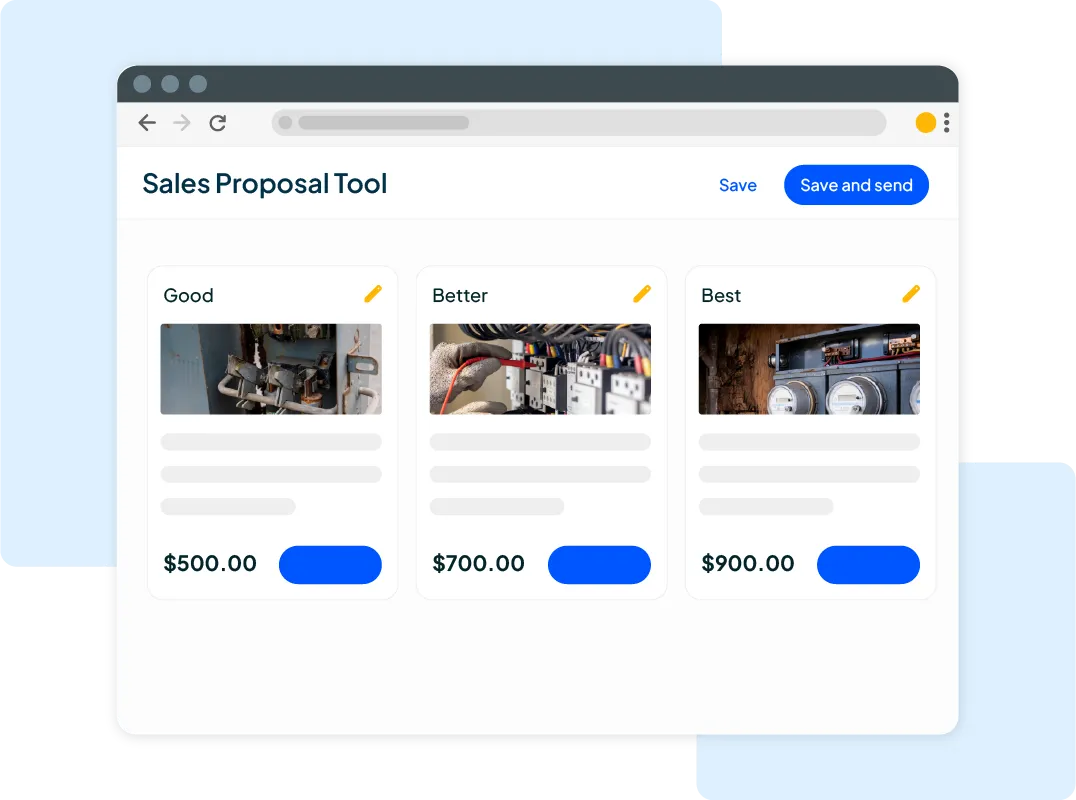
Grow your business and send quick quotes with our home service software.

Want to see your potential revenue?
See what businesses like yours earn with Housecall Pro in 1 - 2 minutes.
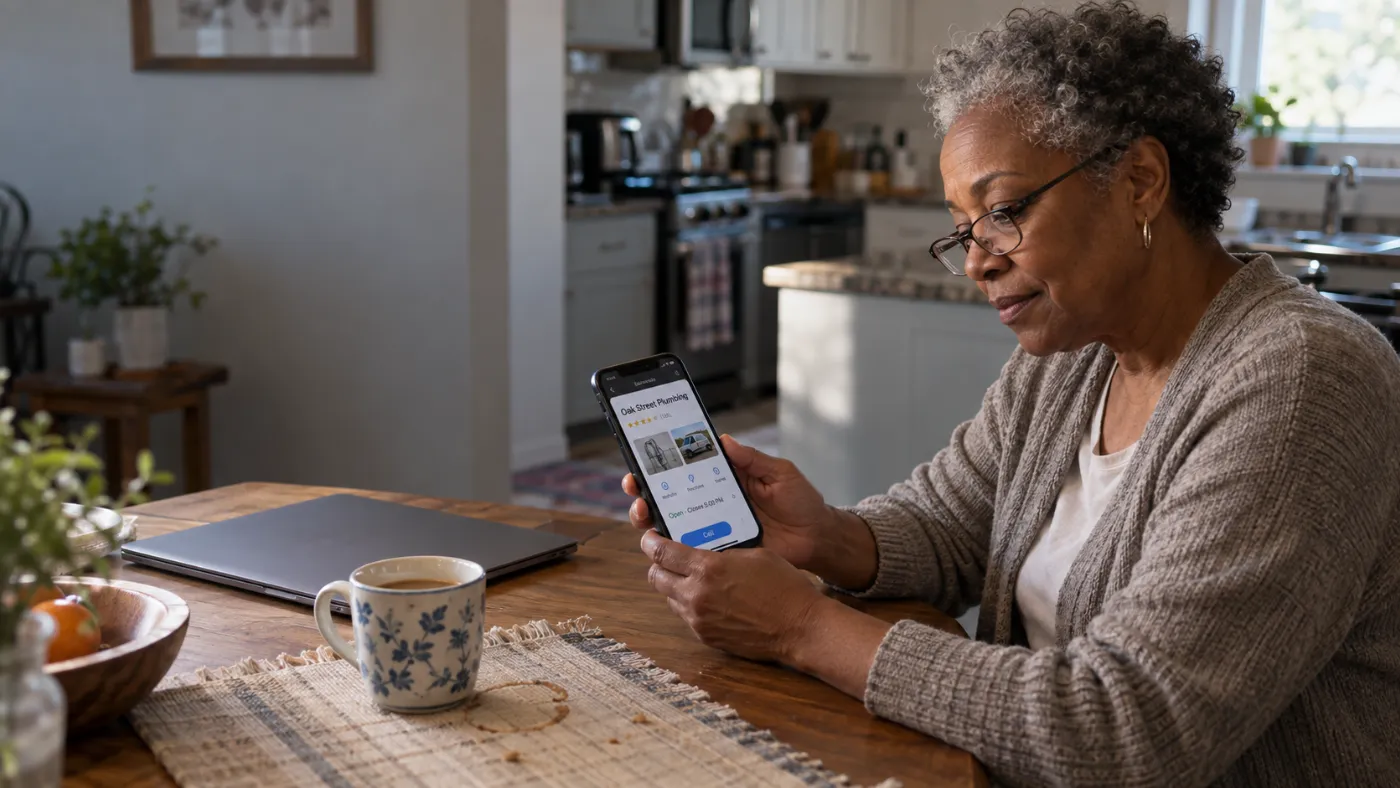
Formerly known as Google My Business (GMB), a Google Business Profile is the listing that appears on Google searches and Google Maps. It shows customers your phone number, hours, service area, reviews, and photos before they ever click through to your website.
For a homeowner dealing with a burst pipe or a broken AC, those details can make it easier to decide who to call. Google Business Profiles are available for both storefront businesses and businesses that travel to customers. This guide covers how to set up a profile for a home service business and what to add once it’s verified.

Score your online presence
See how visible and trustworthy your business looks online.
Quick answer: How do you create a Google Business Profile?
To create a Google Business Profile , start by searching Google Maps for an existing listing. Google may already have an unverified profile for your business even if you never set one up. If you find one, claim it instead of creating a second listing. If not, use Google’s add-or-claim option and enter your real business name, primary category, and contact details.
Next, choose a storefront or service-area setup. Service-area businesses travel to customers, like residential electricians or plumbers. Storefronts serve customers at a fixed address. If you do both, you can set up a hybrid profile.
Finally, complete the verification steps Google offers for your business. Available methods vary, so follow the directions shown on your profile. Once you’re verified, add accurate services, photos, and hours, and keep those details up to date.
Key takeaways
Here's what matters most when creating your profile:
Check for an existing profile: A listing may already exist. Claim it or request ownership before creating a new one.
Choose the right location type: Storefronts show an address. Service-area businesses hide their address and list the areas they serve.
Use your real business name: Leave extra city names, services, and claims like “best” out of the name field.
Pick a specific, accurate category: “Plumber” is more useful than “contractor” when plumbing is your core business.
List the areas you actually serve: Google allows up to 20 service areas and recommends keeping the overall area within two hours’ driving time of your base, per Google’s service-area guidelines.
Table of contents
- Who is eligible for a Google Business Profile?
- Storefront vs. service-area business
- What do you need before adding your business to Google?
- How to create a Google Business Profile step by step
- What should you do after your Google listing is live?
- Common Google Business Profile setup mistakes
- How to turn Google visibility into booked jobs
Who is eligible for a Google Business Profile?
Your business generally needs to serve customers in person, either at a location they can visit or at their property. That includes home service businesses such as:
- A plumbing company working out of a truck
- An HVAC contractor with a shop and a fleet
- An electrician running solo from home
Mobile businesses still qualify for Google Business Profile listings, but they must be set up as a service-area business. Hide your home address from the public and list the cities or ZIP codes you travel to instead.
Online-only businesses and lead-generation businesses aren’t eligible. A P.O. box or remote mailbox doesn’t count as a business location, either.
Check the full requirements: Google business eligibility and ownership guidelines
Storefront vs. service-area business
Your setup depends on where you meet customers. If you serve customers at a physical location and travel to their properties, Google calls that a hybrid business.
| Storefront | Service-area business | |
| Where customers are served | At your business address | At the customer’s property |
| Does the address appear publicly? | Yes; permanent signage is required | No; the address is hidden |
| Service-area setting | Optional if you also travel to customers | Required; list the areas you serve |
| Home service example | An appliance repair shop with a counter and a showroom | A plumber based at home who works at customer properties |
Storefront businesses have publicly viewable addresses. If you only work at customer properties, hide your address so customers see your service areas instead.
You may still need to give Google the address where your business is based during setup or verification. Hiding it from customers doesn’t mean leaving it out of the information you provide to Google.
Pro tip: A service area isn’t the same as a radius. Google asks you to select cities, postal codes, or other defined areas instead.
What do you need before adding your business to Google?
Gather your business details before you start so you can work through setup without stopping to look up hours, service areas, or contact information. You can add more details after verification, too.
You’ll need:
- A Google Account (you can use Gmail or another email address)
- Your real business name, exactly as it appears on signage, invoices, and your website
- Your primary category
- Your business address, service areas, or both
- A phone number customers can use to reach your business
- Your website URL, if you have one
- Regular hours, plus any special or holiday hours
- A list of the services you book
- A short business description
- Photos you have permission to use, such as your logo, team, branded vehicles, and completed work
How to create a Google Business Profile step by step
Google may change the labels or screens you see during setup. Use the options shown in your account if they differ from an online guide or screenshot.
Step 1: Sign in and search for your business
Sign in to the Google Account you want to own the profile, then open Google’s add or claim your Business Profile flow and type your business name.
If your business appears, select the option to claim it. If someone else has verified the profile, follow Google’s request access process.
If nothing appears, continue creating a new profile.
Step 2: Enter your real business name
Enter the business name you use on your signage, website, and invoices. If you operate under a DBA, use the business name customers see in the real world, provided it follows Google’s naming guidelines.
Don’t add a tagline, extra services, or city names to try to appear in more searches. Google’s guidelines say the name field should reflect your real-world business name.
For example, “Miller Plumbing” fits if that’s the name the business uses. “Miller Plumbing—Best Emergency Drain Cleaning Fort Worth” adds claims and services that don’t belong in the name field.
Include legal terms such as LLC or Inc. only if they’re part of the business name you consistently use.
Step 3: Choose the most accurate primary category
Choose the category that best describes your core business. For Miller Plumbing, that’s “Plumber” rather than the broader “contractor” category.
Add secondary categories only when they describe other work your business actually does. You can list individual jobs, such as drain cleaning or water heater installation, in the services section.
Step 4: Choose a storefront or service-area setup
Tell Google where you serve customers so your profile reflects how your business operates.
If customers visit your business address, enter it and keep it visible. The location needs permanent signage with your business name. If you also travel to customers, add a service area.
If you only work at customer properties, hide your address and add the areas you serve. You can set up to 20 areas by city, postal code, or region, per Google’s service-area guidelines. Google recommends that your overall service area stay within about two hours’ driving time of your base.
Avoid listing places you don’t serve or using a mailbox as your storefront address. If you use an office, check Google’s requirements for signage, staffing, and receiving customers before showing its address.

Step 5: Add contact details and hours
Use a phone number you control that reaches your business directly. Add your website, your regular business hours, and special hours for holidays or events. If Google offers additional hours for a service you provide, such as emergency work, set those separately.
Make sure someone can answer the listed number if Google offers phone verification. An automated phone menu can’t receive a verification code.
Step 6: Add services and a business description
List the services customers can book today. An HVAC contractor might list AC repair, AC installation, furnace repair, ductwork, and maintenance plans.
Add pricing or starting rates to individual services if you’re comfortable sharing them. Google’s services section supports per-service pricing, and a profile that answers “how much does this cost” up front often gets the call before a competitor without pricing does.
Also write a business description in plain language and keep it short. Include:
- What you do
- Who you serve
- How long you’ve been doing it
Keep the description natural. Put service details in the services section instead of repeating the same keywords throughout your description.
Step 7: Add real photos and brand assets
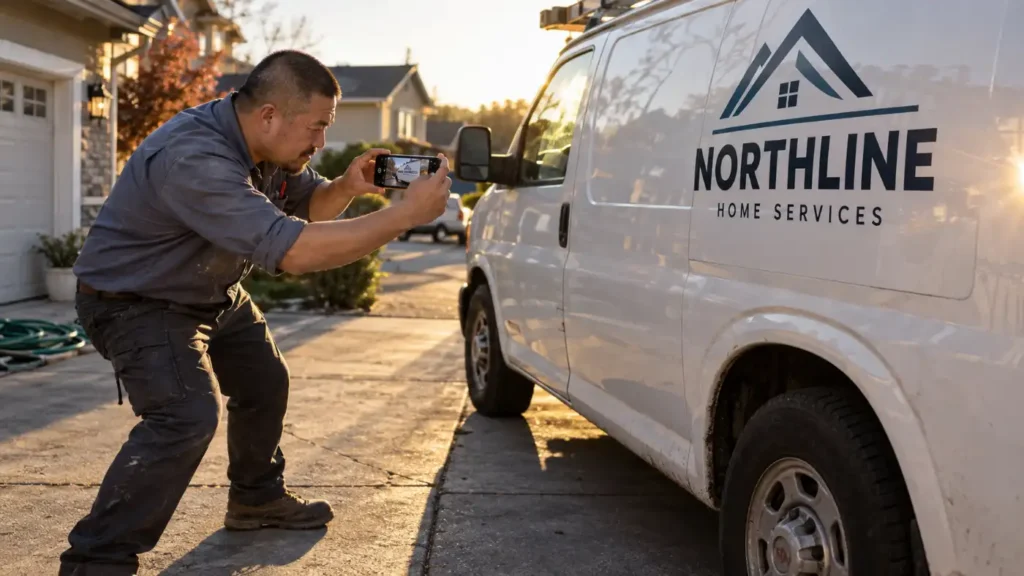
Upload your logo, a cover image, and photos of your team, branded vehicles, and completed work. Use real job photos over stock or AI-generated images. Choose clear photos that accurately represent your work.
Before you post any job photo, get the customer’s permission if it shows them, identifying details, or the inside of their property. Check for house numbers, faces, and personal belongings before uploading a photo.
Step 8: Verify your business
Google determines which verification methods are available for your profile. You may see:
- A video recording
- Phone call or SMS
- Live video call
- Postcard
Google may require more than one method. After you complete the steps, Google says its review can take up to five working days, though some profiles are verified sooner.
If Google offers postcard verification, most codes arrive within 14 days and expire after 30 days. Follow the instructions on your profile, and don’t change your name, address, or category while waiting for a mailed code. Use our Google Business Profile verification guide for help with each method.
Step 9: Review how the profile appears on Search and Maps
Search your business name on Google Search and Maps and check how your profile appears to a customer.
Make sure your location or service area, hours, phone number, website, and services are accurate. If you’ve just made an edit, check again later: some changes need review before they appear. Once verified, most edits appear within about 10 minutes, per Google’s own guidance on profile edits, though Google says approved service-area edits may take up to 48 hours to show.
Read more: 12 marketing ideas for contractors to stay booked year-long
What should you do after your Google listing is live?
Once the listing is live, there are a few things you can do to increase your profile’s visibility over time.
Keep business details and hours accurate
Update your profile when your hours, phone number, services, or location change. Add holiday hours ahead of time so customers know when they can reach you.
A customer who calls an old number or arrives at a closed shop may move on to another business. If you need to close temporarily, update the profile rather than deleting it.
Make it easy for customers to book
Give customers a clear next step when they find your profile. Depending on your setup and eligibility, you may be able to add an online booking option.
If you don’t want to lose a job because a customer couldn’t reach you fast enough, connect booking through Housecall Pro’s Reserve with Google or use an online booking link where supported. Check the setup requirements, including whether your business details match across Google and Housecall Pro.
Ask for and respond to honest reviews
Reviews give customers a way to learn about other people’s experiences with your business. A homeowner comparing two nearby HVAC companies is more likely to call the one with recent, specific reviews than the one with none at all.
Ask for reviews consistently after completed jobs, and respond to feedback, including negative reviews, in a professional way.
Keep your request straightforward:
- Ask customers for an honest review without offering a reward.
- Give customers the same opportunity to leave feedback, regardless of whether you expect a positive review.
Google prohibits incentives for reviews and selectively asking only customers likely to leave positive feedback.
Read more: How to ask for Google reviews
Add owners and managers without sharing passwords
You can give managers and other key team members access to your Google Business Profile without sharing your password. Add each person with their own Google Account and assign a role that fits what they need to manage.
Keep primary ownership with someone who can make decisions for the business. If an agency or contractor helps manage the profile, give them the appropriate access through Google’s account settings.
Get In Touch: 858-842-5746
Let us earn your trust
On average, Pros increase monthly revenue generated through Housecall Pro by more than 35% after their first year.
See plan options and feature breakdown on our pricing page.
Common Google Business Profile setup mistakes
Small errors can make your profile harder for customers to use and take time to fix. Check for these issues before and after verification:
- Duplicate profiles: Search Google and Maps before creating a new listing. Claim the existing listing or request ownership.
- Extra keywords in your business name: Use your real business name. Add services and service areas in their own fields.
- A visible address customers can’t visit: If you only work at customer properties, hide the address and set service areas instead.
- A mailbox listed as your location: Use your actual operating location and follow Google’s rules for displaying an address.
- A broad or inaccurate business category: Select the most specific accurate primary category, then add relevant secondary categories.
- Outdated contact details: Check that the number and website on your profile work and match what customers find on your site.
- Areas you don’t serve: List the places where you’ll actually take jobs.
- Missing details: Add your hours, services, and photos so customers can understand what you offer.
How to turn Google visibility into booked jobs
A complete profile helps customers find and contact you. What happens after they decide to book matters, too: they should know their appointment went through, when to expect your team, and how to reach you if plans change.
Housecall Pro helps you carry that experience through the job. Online booking gives customers a way to schedule without calling. When they confirm an online booking, Housecall Pro can automatically send the appointment details by text and email. You can also set up reminders and “On My Way” updates, so customers know what’s happening without your office sending each message by hand. Housecall Pro Help Center
After the work is done, review management can send a review request automatically. That helps you keep asking for feedback as you complete jobs, while your team manages booking, scheduling, and customer communication in one place
See how it works with a free 14-day trial of Housecall Pro.
FAQs
Is it free to list your business on Google?
Yes, listing your business on Google is free. There is no paid tier that improves your ranking in the map results. Google Ads and Local Services Ads are separate paid options that place your business in ad slots above organic results. They don’t affect your free profile.
Can you create a Google Business Profile without a storefront?
Yes. Businesses without a brick-and-mortar store are listed as service-area businesses, including plumbers, electricians, HVAC contractors, and most other mobile trades. Instead of a street address, list the cities, ZIP codes, or regions you serve (up to 20).
Can you use a home address for a Google Business Profile?
Yes, if you’re a service-area business serving customers at their locations, enter your home address but hide it so it isn’t visible online. Google requires an address (not a P.O. box or registered agent) to set a profile up.
Do you need a website to create a Google Business Profile?
No, a website is optional, but today’s homeowners begin their search for home services online and it’s best to have one. Your website confirms your name, address, and phone number, and it may enable instant verification if you’ve already verified the domain in Google Search Console.
How long does it take for a business to appear on Google?
Google takes up to five business days to review your profile, and sometimes longer. If you verify by postcard, allow time for mailing: codes typically arrive within 14 days and expire after 30. Once verified, most edits appear within about 10 minutes, except those requiring additional review. Service area changes can take up to 48 hours.
What if someone else already claimed your business on Google?
Use Google’s request ownership process. Submit a request through the existing listing. Google then notifies the current owner, who has a set window to respond. If they approve or don’t respond in time, you may get access or be asked to verify the business yourself. Don’t create a second profile while you wait; duplicates can get both listings suspended.
Can one business have more than one Google Business Profile?
No, Google’s policy is one profile per business location. Service-area businesses get one profile covering their entire service area, even if it spans several towns. If your business genuinely has separate locations, each with its own staff, address, and service area, you may be able to create a separate profile for each.
Why is your business not showing on Google Maps?
The most common reason is that your profile isn’t verified yet, since unverified listings have limited visibility. Other reasons could include a pending edit under review, suspension for a guideline violation, a duplicate listing, or a service area that doesn’t include the location being searched. Sign in to your profile and check for a “Get verified” button or review a suspension notice for the cause.