Want to win more jobs with less effort?
Grow your business and send quick quotes with our home service software.

Want to see your potential revenue?
See what businesses like yours earn with Housecall Pro in 1 - 2 minutes.
Sending appointment reminders, chasing unpaid invoices, and following up on estimates can fill hours you need for running jobs and supporting your crew. When you’re handling every follow-up yourself, it’s easy for one to slip through the cracks.
Field service automation helps keep those routine tasks moving. Start with one repeat task, set the rules for when it should run, and decide when your team needs to step in. This guide explains what you can automate, how to get started, and which decisions still need your attention.
Quick answer: What is field service automation?
Field service automation uses software to handle routine tasks when a specific event occurs or condition is met. For example, it can send an appointment reminder before a visit, follow up on an unapproved estimate, or request a review after a job. Many automations follow rules you set and don’t require artificial intelligence (AI).
Table of contents
- How does field service automation work?
- How is automation different from field service management?
- How is rules-based automation different from AI?
- Which field service tasks can you automate?
- What are the benefits of field service automation?
- How can you start automating field service work?
- What field service tasks shouldn’t you automate?
- How can Housecall Pro automate reminders, follow-ups, and review requests?
How does field service automation work?
Most field service automation workflows follow a similar process:
- Trigger: An event starts the process, such as a customer booking a job.
- Rules: Conditions determine whether and when an action should happen.
- Action: The software performs the task, such as sending a confirmation.
- Exception: The software skips the action or flags it for your team when the conditions aren’t met.
For example, you might set up a text reminder for the day before an appointment. Your rules could exclude canceled jobs and customers who’ve opted out of texts, while a missing phone number could prompt your office to follow up another way.
Adding a task to your calendar still leaves the work to you. A “Text customer tomorrow” reminder requires someone to send the message. Automation sends it when your conditions are met.
Example: Automating follow-ups for an HVAC repair
An HVAC company could use automation to keep customers informed from booking through payment:
- When the appointment is confirmed: Send the homeowner the booking details.
- Before the appointment: Send a reminder with the date and scheduled arrival window.
- When the tech marks the job “on my way”: Let the homeowner know the tech is headed over.
- After the job is completed: Send a review request.
- If the invoice becomes overdue: Send a payment reminder, stopping once it’s paid.
Each action needs its own rules. A canceled appointment should stop the reminder, and a billing dispute should pause payment follow-ups so your office can help. Your team still handles the repair, customer questions, and changes that need a decision.
How is automation different from field service management?
Field service management is how you organize jobs, customers, crews, payments, and day-to-day operations. Automation handles repeat tasks within that process.
For example, a dispatcher might schedule a plumber for a water heater installation using field service management software. An automated reminder can then confirm the upcoming appointment without the dispatcher contacting the customer individually.
How is rules-based automation different from AI?
Rules-based automation follows instructions you set, such as “Send a reminder one day before the appointment.” AI can interpret information, generate content, or recommend an action.
For example, a rule can send an estimate follow-up after a set number of days. An AI tool might help draft the message using details from the estimate. Whether that message sends automatically depends on how the software is set up.
Start with straightforward rules before introducing AI tools that interpret information.
Read more: How to use AI for business

Which field service tasks can you automate?
Good starting points are tasks you repeat often, with clear rules for when they should happen. Depending on your software and plan, automation can help with customer messages, job setup, internal alerts, and accounting updates.
| Task | Trigger | Automatic action | When it shouldn’t run |
| Job creation | Eligible online booking received | Create a job with booking details | Request needs office review |
| Job checklists | Job of a specified type created | Attach the relevant checklist | Job needs a custom checklist |
| Internal alerts | Required job information is missing | Notify the responsible team member | Information already supplied |
| Appointment reminders | Appointment approaches | Text the customer one day before | Job canceled or rescheduled |
| Booking confirmations | Booking confirmed | Send booking details | Booking not confirmed |
| Arrival updates | Technician marks job “on my way” | Notify the customer | Job canceled |
| Estimate follow-ups | Estimate remains unapproved | Send a follow-up after a set delay | Estimate approved, declined, or canceled |
| Invoice reminders | Invoice becomes overdue | Send a payment reminder | Invoice paid, disputed, or canceled |
| Review requests | Job marked completed | Ask the customer for a review | Job excluded from requests |
| Service reminders | Scheduled service approaches | Remind the customer to book or confirm a visit | Service canceled or reminder no longer needed |
| Accounting updates | Supported record changes | Sync supported details with accounting software | Record unsupported or sync needs attention |
Before turning on an automation, check what starts it, when it runs, what stops it, and whether your team needs to take any follow-up steps. For example, software might attach a checklist to a job automatically, but your tech still needs to complete the checks and record the results.
Booking confirmations and appointment reminders
Booking confirmations give customers a record of their appointment details. Reminders help them prepare for the visit. Check each customer’s contact preferences before setting up automatic messages.
Pro tip: Test what happens when a customer reschedules or cancels an appointment. Make sure the old reminder is canceled and your automation software doesn’t send duplicate messages.
Job assignments and customer arrival updates
When assigning jobs, your dispatcher needs to consider each tech’s schedule and location. Some platforms can automate parts of that process using rules you set. Check what your dispatching software supports and how your dispatcher can adjust assignments when plans change.
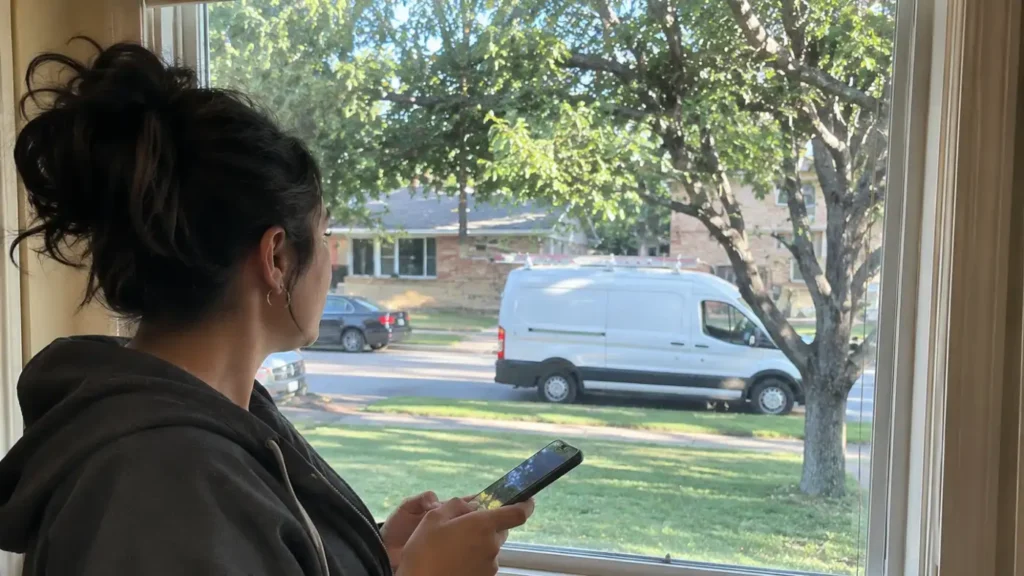
According to a 2025 Housecall Pro survey, 48% of homeowners said an “on my way” text message offers the most reassurance before a visit. Field service automation can send this notification when a technician marks a job as “on my way.” The message confirms that the technician is en route.
Read more: How AI booking and dispatch works for home service companies
Estimate follow-ups and payment reminders
Set up follow-ups for estimates awaiting a decision and invoices that are past due. Make sure each reminder has a stopping point: Estimate follow-ups should stop when the customer approves or declines the estimate, or when it’s canceled. Payment reminders should stop when an invoice is paid or canceled, and pause when a dispute needs your team’s attention.
Recurring service and billing tasks
Recurring service automation can help you schedule repeat visits and remind customers when maintenance is due. Recurring billing collects payment on an agreed schedule, such as monthly or weekly. Before setting it up, confirm the customer’s authorization, the billing frequency, and how your team will handle failed payments.
Review requests and accounting updates
Field service automation can request customer reviews and update accounting records immediately after you complete a job. In the Housecall Pro survey above, 40% of homeowners say they’re likely to leave a positive review after excellent service. Automatic requests help you follow up with customers when the experience is still fresh, increasing your chances of getting honest feedback.
Beyond review requests, automation can also help keep your accounting records up to date. Accounting updates depend on the integration and supported records, so confirm what project details transfer to the accounting software and how failed updates are handled rather than assuming everything syncs both ways.
What are the benefits of field service automation?
Field service workers waste 18% of their working hours on admin tasks, according to Salesforce’s 2025 State of Service Report. That adds up to more than seven hours per week. Automating some of that work can help you:
- Save time: Send routine reminders and follow-ups without contacting every customer individually.
- Follow through consistently: Keep estimates, payment reminders, and service follow-ups from slipping through the cracks.
- Keep customers informed: Send confirmations, appointment reminders, and arrival updates at the right points in the job.
- Reduce manual errors: Cut down on repeat data entry and missed steps when your records and rules are accurate.
Pro tip: Poorly defined rules or outdated records can trigger duplicate messages or send reminders at the wrong time. Check your automations regularly so you can catch problems early.
Get In Touch: 858-842-5746
Let us earn your trust
On average, Pros increase monthly revenue generated through Housecall Pro by more than 35% after their first year.
See plan options and feature breakdown on our pricing page.
How can you start automating field service work?
You don’t need to overhaul your entire operation at once. Pick a task, configure the rules, test the setup, and expand once the process works reliably.
1. Choose one frequent task with a clear rule
Start with a task that happens regularly, follows predictable steps, and is easy to check afterward. Appointment reminders are a practical starting point because the trigger and timing are straightforward. Save more complex work, such as emergency dispatching, until you’ve tested simpler automations and know where your team needs to stay involved.
2. Map what starts it, what happens, and when it stops
Write out how the task should work before setting it up in your software. For appointment reminders, that might look like this:
- Before: Your office team checks tomorrow’s schedule and contacts each customer to remind them about the appointment.
- After: Your software sends a reminder before each eligible appointment. It skips canceled jobs and avoids duplicate messages. If a phone number is missing or a message fails, your office team follows up manually.
Decide what starts the process, how long to wait, when to skip or stop an action, and who handles problems.
3. Confirm the software and integration requirements
Check whether your current software can handle the task before adding another tool. If you’re comparing platforms, ask each provider to show you how your process would work, including what happens when something goes wrong.
Use these questions to guide your review:
- Does it automate the task you need? Walk through your specific example, from the event that starts it to the conditions that stop it.
- Can your office adjust the settings? Check who can change the timing, message templates, and rules without extra support.
- Can you track and fix problems? Look for a way to see failed actions, pause an automation, and follow up manually.
- Does it connect with your other tools? Confirm which records transfer, which direction information moves, and how duplicate or failed updates are handled.
- What’s the full cost? Ask about plan requirements, setup, training, messaging fees, and integration charges.
Protect customer data by giving employees only the access they need to do their jobs, using strong authentication, and removing access when an employee leaves.
4. Test a normal job and likely exceptions
For an appointment reminder, test a scheduled job, a cancellation, a rescheduled visit, and a customer record without a mobile number. Check that the right customer receives the right message at the right time—and that messages are skipped when they should be. Fix any issues before turning it on for more jobs.

5. Measure results and expand gradually
Before turning on an automation, record how much time your team spends on the task and how often steps get missed. After it’s running, compare those numbers and track how often someone needs to step in.
For example, if your office sends 60 appointment reminders a week and each takes two minutes, that’s two hours of work. If checking the automation and handling exceptions takes 30 minutes a week, you’ve saved 1.5 hours. These are example figures; use your own results to assess the value.
Compare the time saved with any added software, messaging, or integration costs. Account for initial setup and training time, too.
Check the customer experience alongside time savings. Are fewer appointments being missed? Are customers responding to estimate follow-ups? Are duplicate messages or complaints increasing? A delivered message doesn’t tell you whether the customer read it.
Once the first automation works consistently and saves your team time, move on to another repeat task, such as invoice reminders or review requests.
Read more: Best AI prompts for business
What field service tasks shouldn’t you automate?
Automation can handle routine actions, but the following decisions require human judgment or context:
- Diagnosis: A technician assesses the problem and recommends the right repair.
- Safety decisions: A pro assesses the hazards and decides whether the job can proceed safely.
- Unexpected job changes: Your team reviews changes to the work, delays, and access problems before adjusting the plan.
- Sensitive complaints: A team member listens to the customer and works through the dispute.
- Conflicting priorities: A manager weighs emergencies, technician availability, and customer needs.
Make sure your team knows which alerts require action, who makes the decision, and how to document the outcome.
How can Housecall Pro automate reminders, follow-ups, and review requests?
If your office spends hours sending reminders and following up after jobs, Housecall Pro’s field service management software can help take some of that work off your plate. Start with the task that takes the most time or is easiest to miss, then check the available features and settings for your plan.
Options include:
- Appointment reminders: Send automatic text reminders before scheduled appointments so your office doesn’t have to contact every customer individually.
- Recurring service and billing: Use service plans to manage ongoing maintenance and recurring billing. Confirm the scheduling and payment settings that fit your agreements with customers.
- Review requests: Automatically ask customers for feedback after jobs and manage reviews in one place.
Ready to spend less time on routine tasks? Try Housecall Pro free for 14 days.
Read more: Best AI tools for home service businesses
Field service automation FAQs
Does field service automation require AI?
No, field service automation does not require AI. Rules-based automation can trigger appointment reminders, send overdue invoice reminders, or run similar processes.
Can a small home service business use field service automation?
Yes, a small home service business can use field service automation to carry out repetitive tasks. Even with a small team, automation can save time, reduce missed appointments, and keep daily operations organized without requiring a large budget or complex software. For example, a plumbing company with two techs can start with automatic appointment reminders, then add estimate follow-ups and review requests once the first rule works reliably.
What field service tasks should you automate first?
When automating field service tasks, start with a routine task, such as appointment reminders or review requests. Avoid complex workflows until you’ve established regularly occurring processes, since simple tasks are easier to test and troubleshoot. A good first pick happens often, has a clear rule for when to stop, and is easy to check afterward.
What is an example of field service automation?
An example of field service automation is following up on a lead after a job estimate remains unapproved for 48 hours. Specify conditions to prevent the message from being sent if the quote is approved, disputed, or canceled.
Can I automate appointment reminders and review requests?
Yes, you can automate appointment reminders and review requests with Housecall Pro field service software. Review requests are sent when a job is marked complete, and you can schedule appointment reminders before the appointment.
Is field service automation worth it for a small business?
Field service automation can be worth it if it reduces time spent on routine business tasks or improves customer relations by ensuring reminders and other notifications are sent consistently. Its value depends on your workflow, software costs, and how often employees still need to intervene, so measure results rather than assuming you’ll save a specific amount.
What is the difference between automation and automatic dispatching?
Automation can handle many tasks, including sending reminders, generating invoices, and updating records. Automatic dispatching focuses specifically on assigning jobs to the right technicians. Auto dispatching is a type of automation.
What are the risks of field service automation?
The main risks are duplicate or mistimed messages, reminders sent after a job is canceled or to customers who opted out, outdated customer records, failed messages no one notices, and too many people with access to change the rules. Test each automation with a normal job and likely exceptions, review the rules regularly, and decide who handles alerts and failures.