Want to win more jobs with less effort?
Grow your business and send quick quotes with our home service software.

Want to see your potential revenue?
See what businesses like yours earn with Housecall Pro in 1 - 2 minutes.

When a customer asks when their tech is showing up, you need a clear answer. But if you have to call each tech to find out where they are, those check-ins can eat up your day.
Job status tracking lets you see each job’s latest update, so you can check whether a technician has headed out, started work, or finished. When you’re juggling multiple techs, those updates can make a big difference in your day—allowing you to answer customers and adjust the schedule without interrupting your crew.
Quick answer: How do contractors track job progress without calling technicians?
Contractors can track job progress through a shared system that technicians update from the field. With Housecall Pro, your crew records when they’re on the way, starting work, and finished, so the office can check the latest updates in our dispatching software. GPS features add location information to help you plan the next assignment. Technicians still need to update the job—a truck’s location alone doesn’t tell you whether a repair’s finished.
Key takeaways
Here’s how to keep your schedule moving with fewer status calls:
Update as you go: Have technicians record when they’re on the way, starting work, and finished.
Check before calling: Review job progress and upcoming assignments before interrupting a technician.
Get ahead of delays: Find out how much work is left before a delay affects the next appointment.
Keep customers informed: Send arrival notifications and vehicle-tracking links when enabled.
Know what’s missing: Check whether you need a fresh job update or more recent location information.
Table of contents
- What “just checking in” calls really cost you
- Why texting your techs for updates doesn’t fix it
- How to get technician status updates from the field
- What happens when a job runs long or a technician gets stuck?
- How GPS tracking helps you locate your team and keep customers in the loop
- What to look for in job status tracking software
- How Housecall Pro helps contractors track job status and manage dispatching
What “just checking in” calls really cost you
A quick call feels harmless until you’re making it all day. Your technician stops working to answer, you pause another task to dial, and the customer’s still waiting while you track down an answer.
Consider this hypothetical example: eight technicians each receive three two-minute status calls during the day.
8 technicians × 3 calls × 2 minutes = 48 minutes of dispatcher time per day.
That doesn’t include unanswered calls, return calls, or time spent passing updates to customers. It also interrupts technicians who may be diagnosing a problem or walking a homeowner through repair options.
Calling between jobs can also interrupt a technician who’s driving. NHTSA identifies talking and texting on a phone as driving distractions. Have technicians update their status before driving and respond to messages when safely parked.
Why texting your techs for updates doesn’t fix it
Group texts move the conversation off the phone, but you’re still asking someone to stop and send an update. A “wrapping up soon” message leaves questions: Which job? How soon? Has the next customer heard anything?
Shared spreadsheets also need someone to enter the update and someone else to check whether it’s still accurate. When technicians record progress on the assigned job instead, you have one place to check.
How to get technician status updates from the field
Agree on a few points during each job when technicians should update their status. Keep the routine simple enough to follow during a busy day:
- Open the assigned job. Review the address and job details before leaving.
- Tap On My Way. Let the office know you’re heading out and send the customer notification if it’s enabled.
- Record when work starts. Update the job so the office knows you’ve arrived and started working.
- Mark the job finished. Record completion when the whole job is done.
When several technicians share a job, agree on who marks it finished. One technician finishing their part doesn’t necessarily mean the entire job’s complete.
With travel and job time tracking enabled in Housecall Pro, technicians can use Pause my time when they need materials, are taking a break, or finishing their portion of the work. Selecting Finish job stops job time tracking for everyone assigned, so save it for when the entire job’s done.
What you can see on the calendar and map
Use the calendar to review assignments and color-coded job progress. When a job runs over, move the next appointment with Housecall Pro’s scheduling tools, then check the map to see where jobs are and where technicians were last reported.
Open the job details when you need a closer look. An “In Progress” job can mean On My Way has been selected, even if work hasn’t started yet. Check the recorded updates to see whether the technician’s still traveling or has started working on-site.
What your customer gets automatically
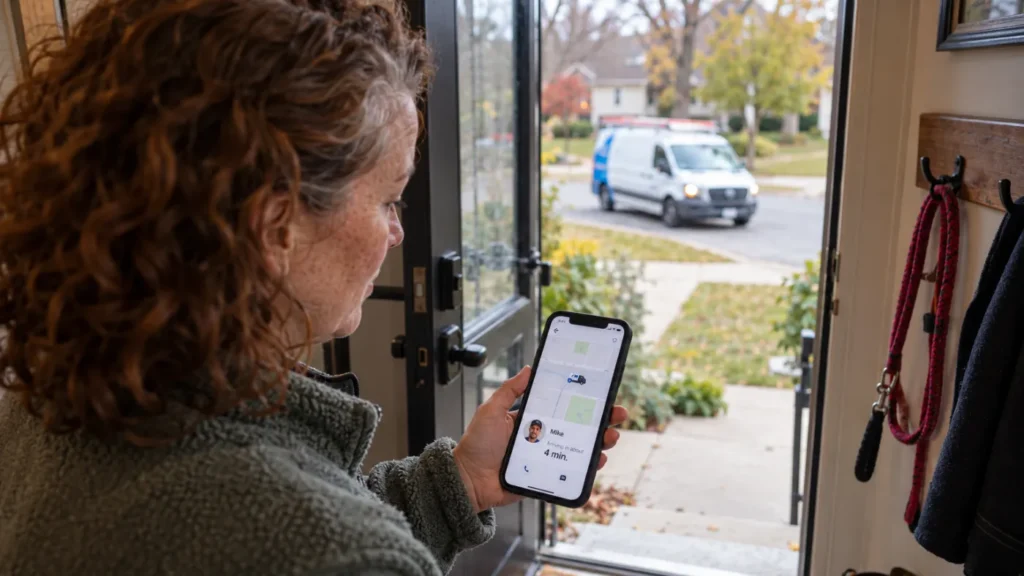
When enabled, an On My Way notification tells the customer their technician’s headed over. Depending on your notification settings, the technician’s name and photo can also help the customer recognize who’s arriving. With Vehicle GPS Tracking set up and customer location sharing turned on, the notification can also include a vehicle-location link.
This is part of building a good customer experience: In Housecall Pro’s 2025 Customer Service Report, 59% of homeowners said they expect to receive text updates throughout the job.
Pro tip: Have technicians update jobs as they go. An update entered at the end of the day won’t help you adjust the afternoon schedule.
What happens when a job runs long or a technician gets stuck?
Check job progress and location to see where you need to step in. You’ll still need to check with the technician if you need to know how much work is left before changing the next appointment.
- A repair runs over. The job hasn’t been marked finished, and the next arrival window is approaching. Ask how much work is left, adjust the appointment, and notify the next customer.
- A technician hits traffic. Check the vehicle’s location if you use Vehicle GPS Tracking, or the technician’s last reported phone location if you don’t. Then see whether they can still reach the next job on time. Update the appointment if needed, and contact the customer if you need to explain the delay.
- An emergency call comes in. Compare nearby technicians’ current work, skills, equipment, and upcoming appointments before choosing who to send.
For example, a technician 10 minutes away might still be testing a repair. Another technician 20 minutes away may have finished and have the right parts onboard.
When you reassign a job, make sure the replacement technician has seen the change and has the details they need. With customer notifications enabled, Housecall Pro automatically sends an update when you change the assigned technician or scheduled time. If the customer needs more details about the change, follow up with a quick call or message.
Read more: How AI booking and dispatch works for home service companies
Get In Touch: 858-842-5746
Let us earn your trust
On average, Pros increase monthly revenue generated through Housecall Pro by more than 35% after their first year.
See plan options and feature breakdown on our pricing page.
How GPS tracking helps you locate your team and keep customers in the loop
GPS tracking helps you locate your team and, with the right setup, lets customers follow an approaching vehicle.
Locate technicians through their phones
Need to find a technician between appointments? With Housecall Pro’s Employee GPS Tracking, you can check their last reported phone location during your set business hours, as long as the feature’s included in your plan and location access is enabled.
Android locations update approximately every 15 minutes, while iOS updates depend on movement and app activity. Treat the map pin as the last reported location; if it doesn’t line up with the job update, confirm the technician’s availability before assigning another job.
Follow vehicles with a device in the truck
To follow a truck’s location without relying on the technician’s phone, use Housecall Pro’s Vehicle GPS Tracking, powered by Force Fleet Tracking. A plug-in device reports vehicle location and lets you share that location with customers when the device is assigned to the vehicle and customer location sharing is enabled.
The customer map link expires when Start, Finish, or Invoice/Pay is selected, or after two hours—whichever comes first. That gives customers a way to follow the vehicle before their appointment without sharing a tech’s movements all day.
What to look for in job status tracking software
Look for field service dispatch software that helps you see what each technician’s doing and what’s next on their schedule. You should be able to check job progress, review assignments, and make schedule changes without searching through separate messages.
Ask vendors:
- How do technicians update jobs from the field?
- Can I tell whether a technician’s traveling, working, or finished?
- Does location tracking use phones, vehicles, or both?
- What happens when a technician pauses work or loses service?
- How do schedule changes reach technicians and customers?
- Which features require another plan, add-on, or device?
Ask for a demo using a situation your dispatch team handles regularly. For example, reassign a 2 p.m. appointment because the assigned technician’s still working at 1:45. Check how the replacement technician learns about the change and whether the customer receives an automatic update.
How Housecall Pro helps contractors track job status and manage dispatching
When customers need updates and the schedule changes, your office needs a clear view of what’s happening in the field. Housecall Pro helps your crew share job progress and gives your dispatch team the tools to act on it:
- Adjust the day’s assignments: Use our scheduling and dispatching tools to move or reassign jobs.
- Check progress from the office: Technicians update jobs in our mobile app.
- Keep customers updated: Automatically notify customers when the scheduled time or assigned technician changes, with notifications enabled. Send an On My Way notification when you’re heading over.
- Locate your team: Use Employee GPS Tracking to check technicians’ last reported phone locations.
- Follow your trucks: Add Vehicle GPS Tracking to see vehicle locations and share tracking links with customers.
Spend less time chasing updates and more time keeping the day on track. Start your free 14-day trial of Housecall Pro.
FAQs
Why isn’t my technician’s location updating?
If a technician’s pin isn’t moving in Housecall Pro’s Employee GPS Tracking, check four things first: your configured business hours, phone permissions, power, and connectivity. On Android, locations update approximately every 15 minutes, so a pin that hasn’t moved may just be waiting for its next update. If the location is updating but the job status isn’t, confirm whether the technician recorded their latest action.
Does GPS automatically mark a job complete?
No. GPS location updates don’t replace job-completion actions in Housecall Pro. A technician leaving the property could be picking up parts or returning later, so your crew still needs to record when the job is finished.
Which fleet tracking tools help dispatchers see job progress?
Look for fleet tracking connected to job records and scheduling. Housecall Pro offers two options: Employee GPS Tracking, which shows a technician’s last reported phone location when it’s included in your plan, and Vehicle GPS Tracking, which uses a plug-in device assigned to the truck. During a demo, ask to see an assigned job, its latest status update, and the technician’s location. You should have enough information to decide whether they can take another call or need to finish their current job first.
Can customers see when their technician is on the way?
Yes, when On My Way notifications are enabled, customers receive a notification when their technician heads to the job. With Vehicle GPS Tracking set up and customer location sharing enabled, they can also receive a vehicle-location link. That link expires when Start, Finish, or Invoice/Pay is selected, or after two hours—whichever happens first.
Does job status tracking work for small teams?
Yes. Small teams can benefit from shared updates, too. In a three-truck shop, seeing which technician has finished can help you handle an urgent request without calling all three. Start by getting everyone into the habit of updating jobs the same way.