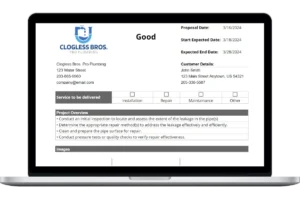
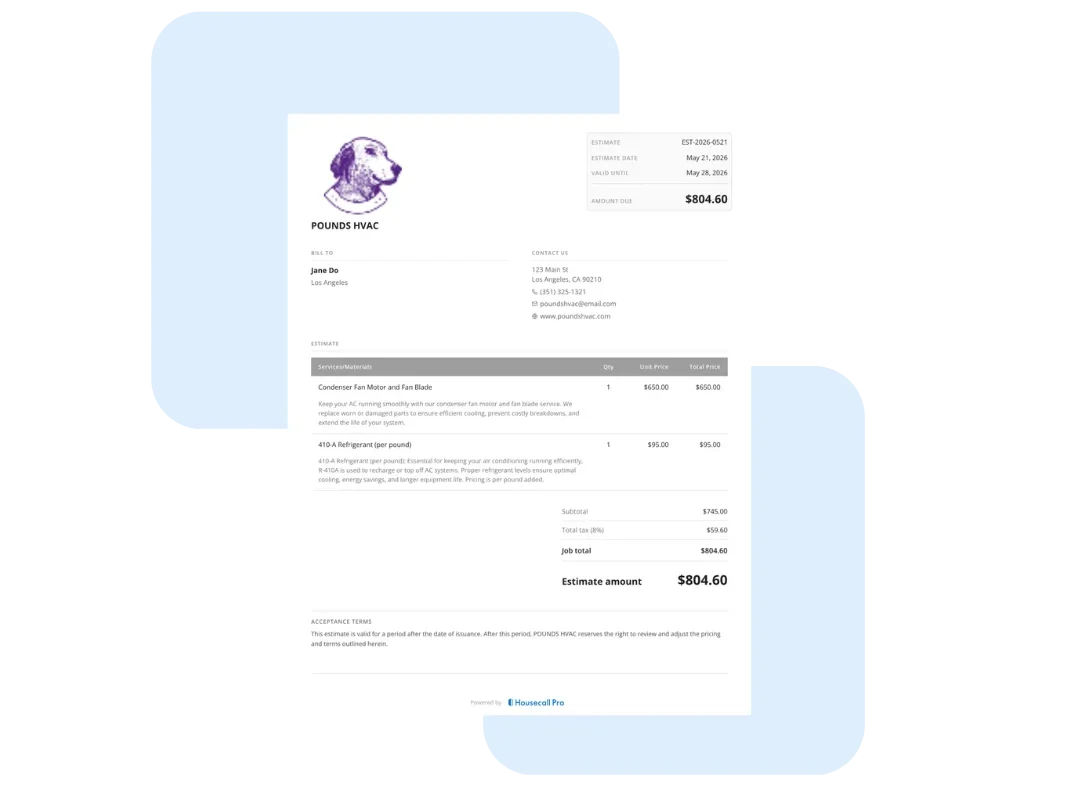
- Terms and Conditions: It is a best practice to include a brief section outlining your payment terms, warranty information, and the estimated timeline for the work.
Building Your Free Plumbing Estimate: A Step-by-Step Guide
Our Google Sheet estimate template is designed to be comprehensive yet easy to fill out. Follow these steps to create a winning estimate for your next job. For your convenience, a copy of these instructions is also included on the ‘Instructions’ tab within the Google Sheet itself.
Important First Step: Make a Copy of the Template Before you begin, you must save a copy of the Google Sheet to your own Google Drive. The original template you receive is view-only, ensuring every user gets a clean version. To make your own editable copy:
- Open the Google Sheet.
- Go to the File menu in the top-left corner.
- Select Make a copy. Your new, editable version will open, and you can now follow the steps below.
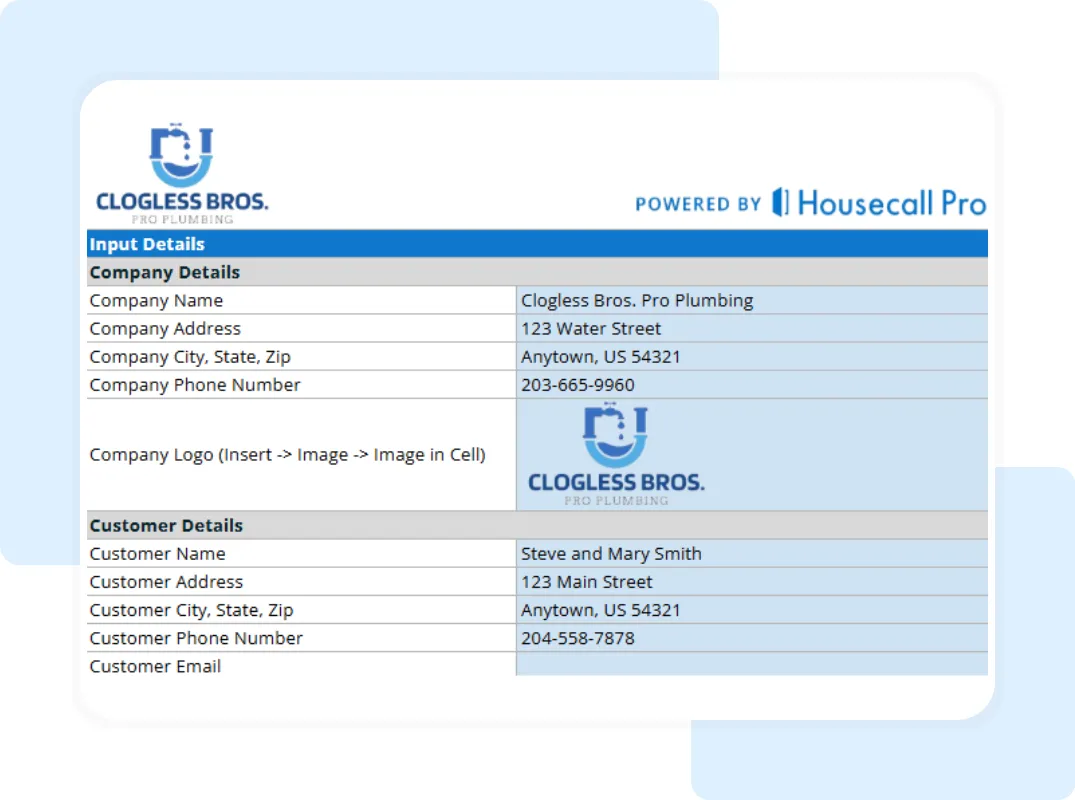
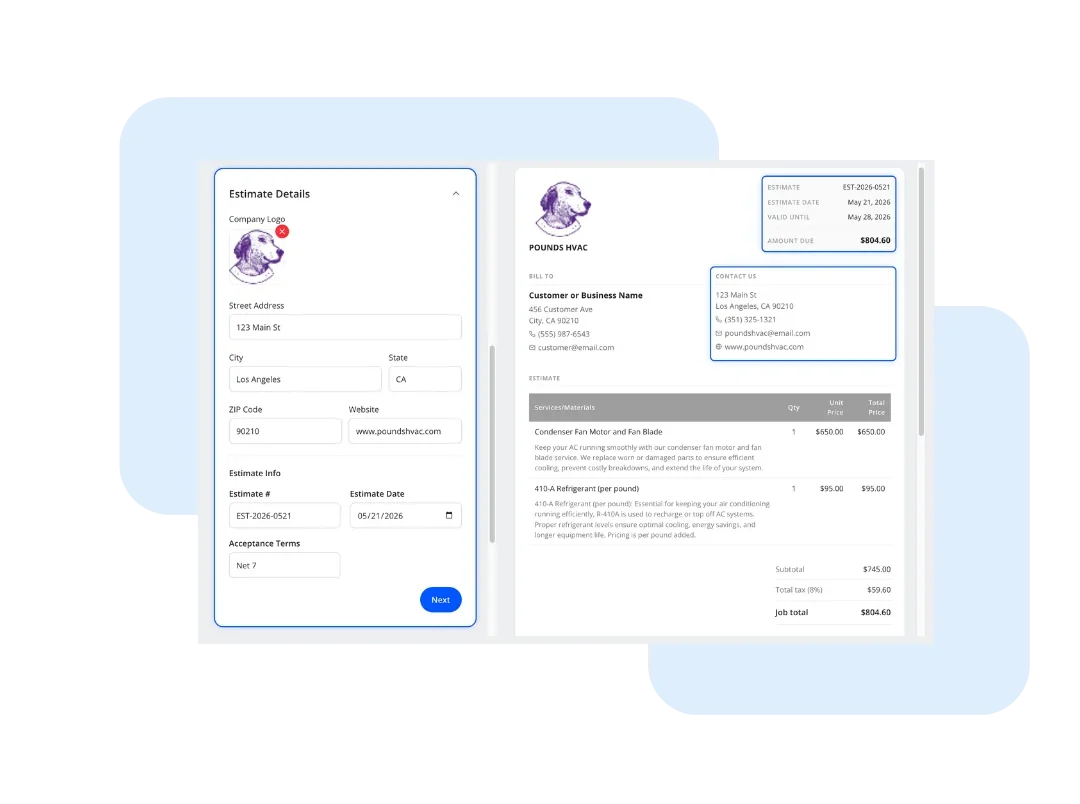
Step 1: Customize with Your Business Information Open your copied Google Sheet and go to the “Company and Customer Information” tab. Replace the placeholder logo and enter your company’s name, address, and contact details. Save this version as your master template.
Step 2: Enter Client and Estimate Details In that same tab, fill in the client’s information for the specific job. Assign a unique estimate number and set the date.
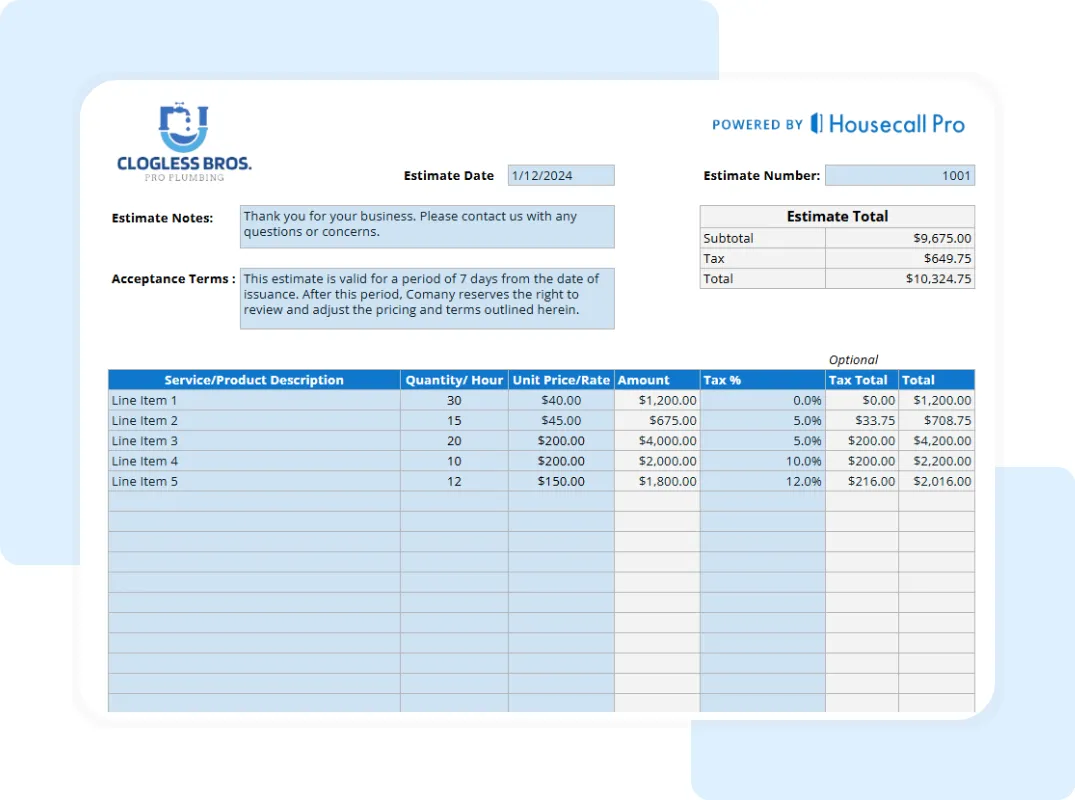
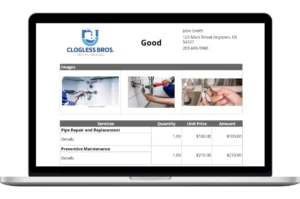
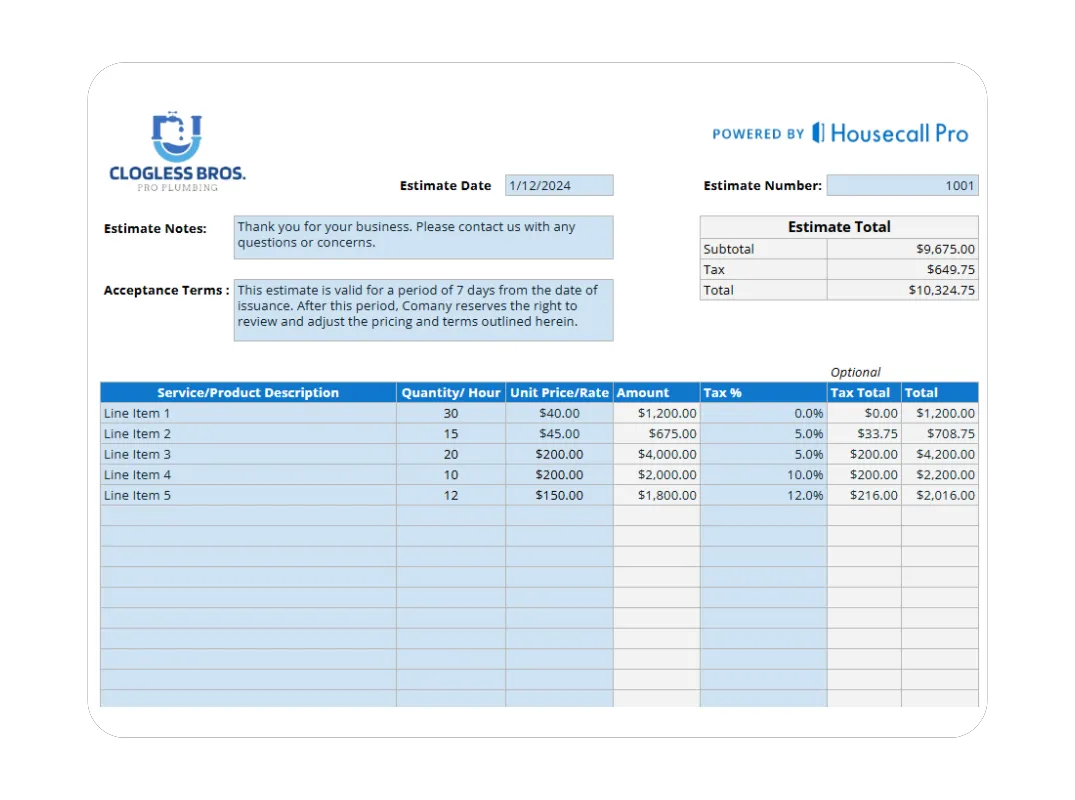
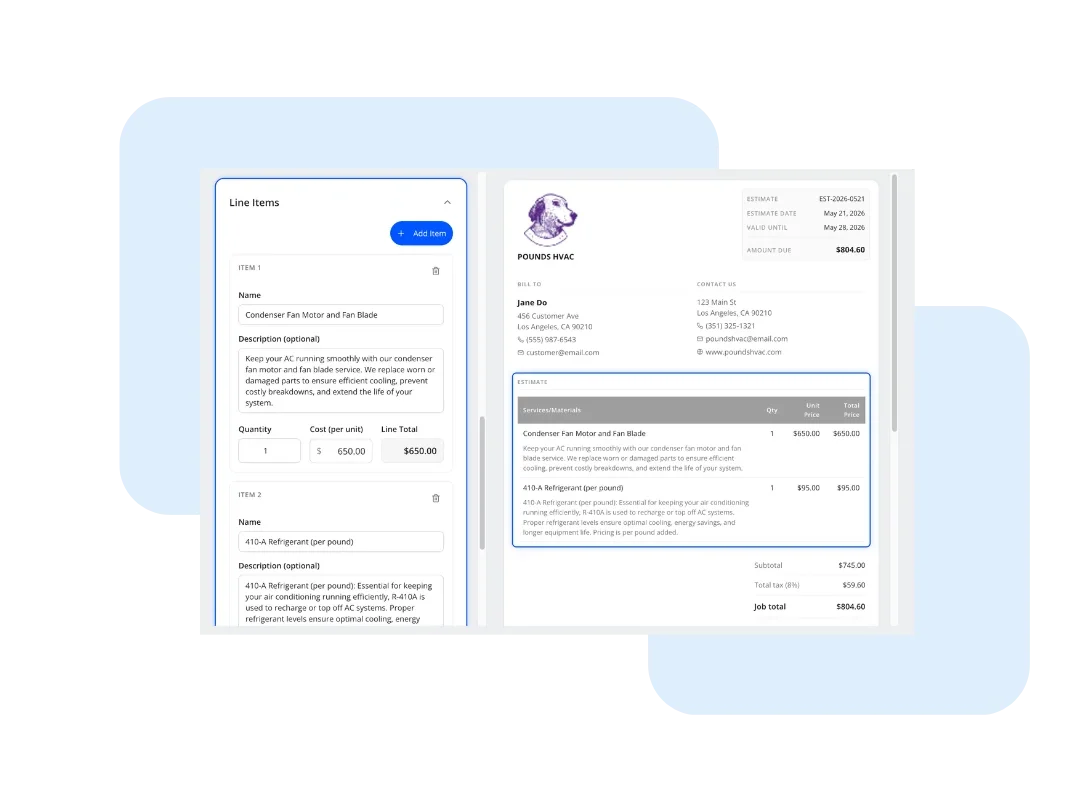
Step 3: Detail All Charges Move to the “Plumbing Estimate Details” tab. This is where you will build the core of your estimate. Create a new row for every single charge.
- For labor, in the DESCRIPTION column, write “Plumbing Labor” or “Installation Labor.” Enter the hours in the QTY column and your hourly rate in the UNIT PRICE column.
- For materials, create a new row. In the DESCRIPTION column, write the part name (e.g., “Pro-grade Kitchen Faucet”). Set QTY to 1 and enter the part cost in the UNIT PRICE column.
- Repeat this for all parts and fees.
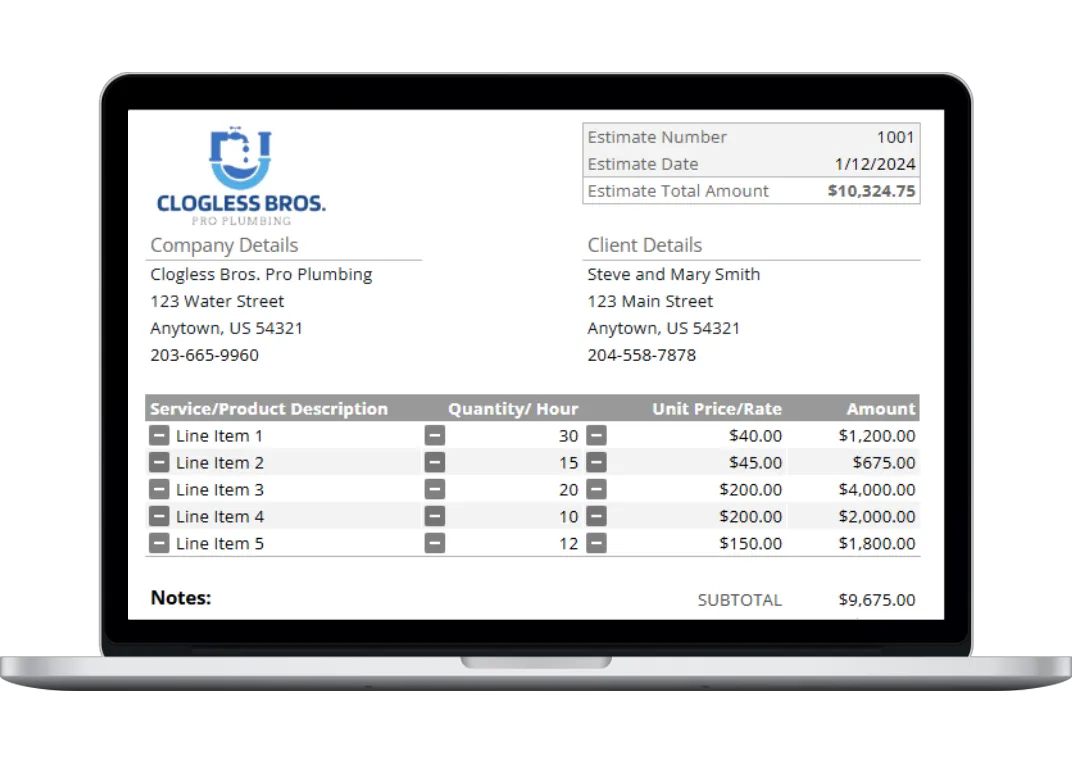
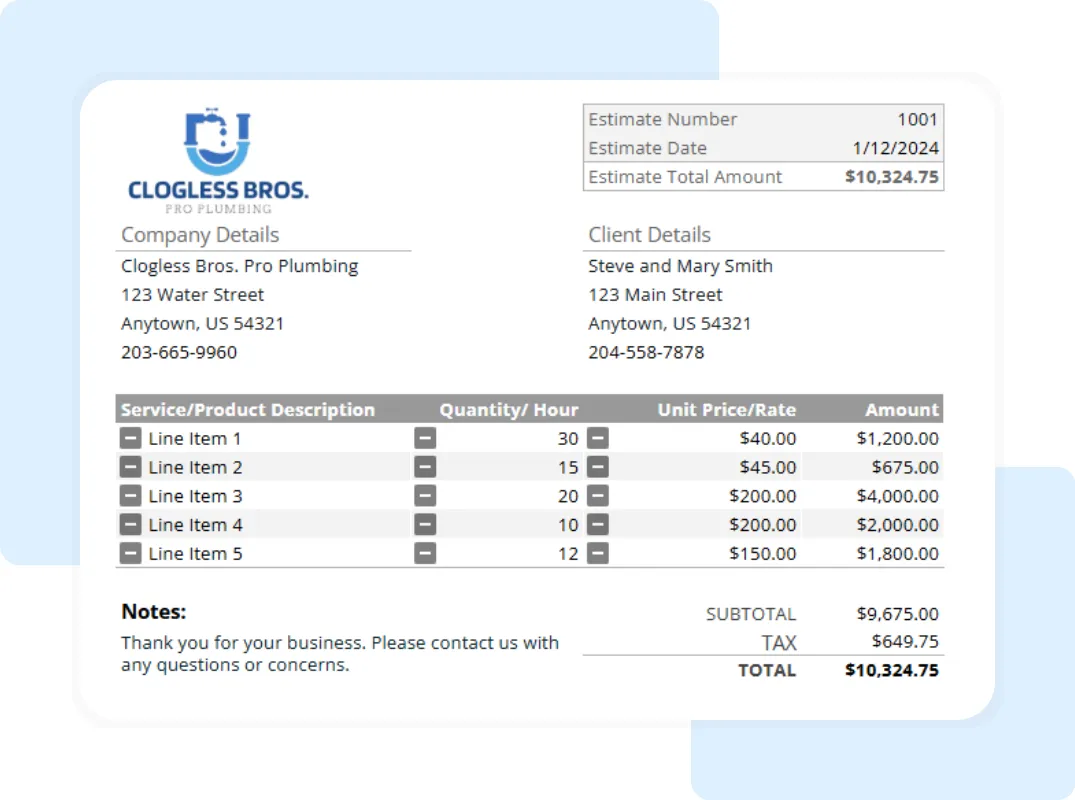
Step 4: Review the Automated Totals The template will automatically multiply the QTY and UNIT PRICE to get the AMOUNT for each line. It then adds up all amounts, applies your Tax rate, and provides the final ESTIMATE TOTAL at the bottom.