Want to win more jobs with less effort?
Grow your business and send quick quotes with our home service software.

Want to see your potential revenue?
See what businesses like yours earn with Housecall Pro in 1 - 2 minutes.
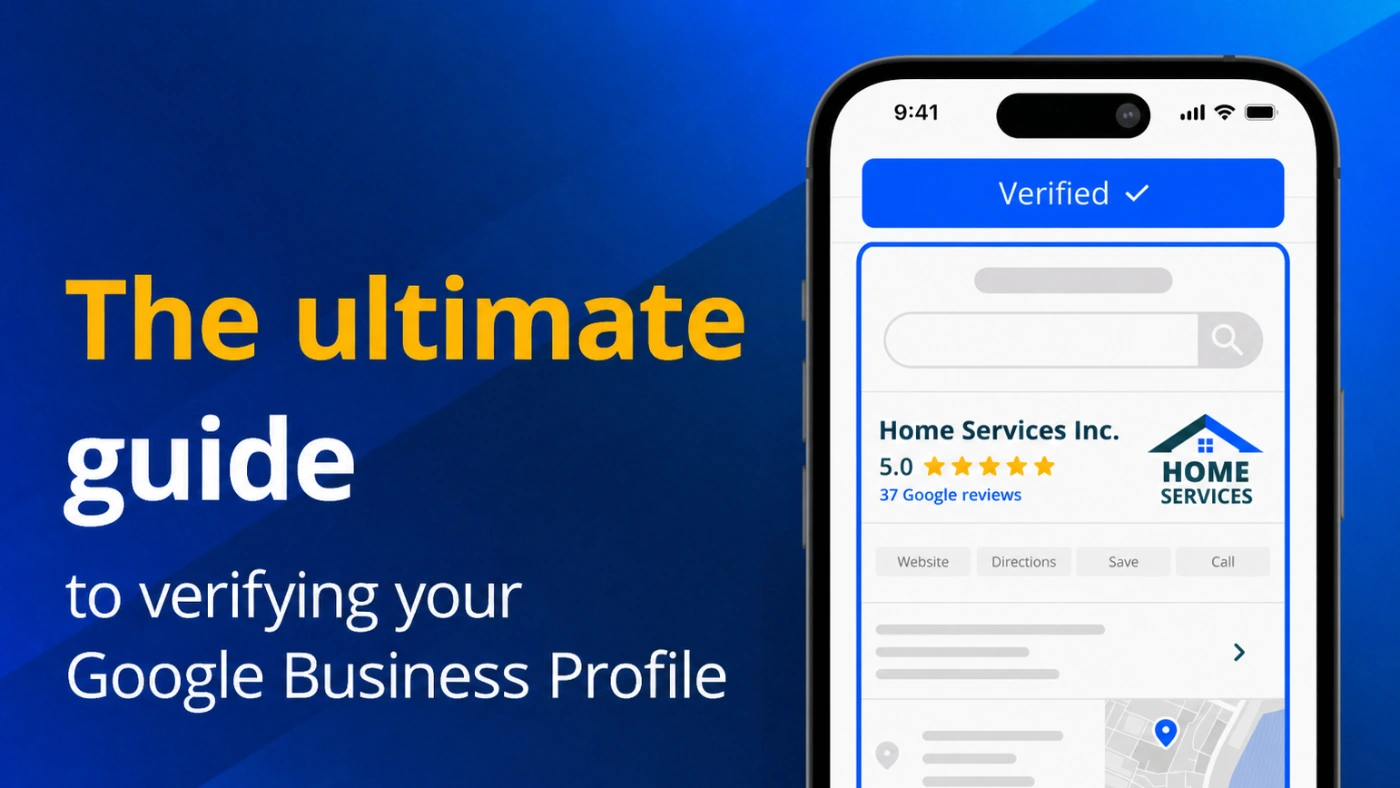
Your Google Business Profile helps customers find your business, check your hours and service area, and learn more about your services on Google Search and Maps. Before you can fully manage your profile, Google needs to confirm that you’re authorized to represent the business. Once verified, you can update your information, add photos, and respond to reviews.
The verification process looks different for every business. Google may offer video recording, phone or text, email, live video, mail, or another method based on your business type, location, and profile details. You’ll need to use one of the options Google provides for your profile.
This guide walks you through how to verify a Google Business Profile for a storefront, hybrid, or service-area business. You’ll learn what to prepare, how each verification method works, and how to handle common issues along the way.

Score your online presence
See how visible and trustworthy your business looks online.
Quick answer: How do you verify a Google Business Profile?
To verify a Google Business Profile, sign in to the Google Account connected to the business, find your profile, select “Get verified,” and complete the verification method Google provides. Google chooses the available options based on details such as your business type, location, and category. Once you submit the required proof, allow up to five business days for review. Some businesses may need to complete more than one method.
Key takeaways
Keep these points in mind as you prepare for and complete verification.
Gather the right proof: Have your business details, signage or equipment, documents, and proof of management ready.
Protect your home address: Service-area businesses can verify with an operating address while keeping it hidden from customers.
Allow time for review: Google’s review can take up to five business days after you complete the required steps.
Follow Google's next steps: Use the notice or error on your profile to resolve issues, and avoid creating a duplicate listing.
Table of contents
- What does Google Business Profile verification do?
- Do you need to verify your business on Google?
- Is Google Business Profile verification free?
- What should you prepare before verification?
- What Google Business Profile verification methods are available?
- How to pass Google Business Profile video verification
- How does verification by phone, email, live video, or mail work?
- How long does Google Business Profile verification take?
- Why is your Google Business Profile not verifying?
- What should you do after your profile is verified?
- How Housecall Pro can help after Google verification
What does Google Business Profile verification do?
Google Business Profile verification confirms that you’re the business owner or an authorized representative who can manage the profile. It also helps Google confirm that your business operates at the listed location or serves customers in its designated service area.
Once verified, you can update the information customers see across Google Search and Maps. Depending on the features available for your profile, this may include your:
- Business name
- Address or service area
- Business hours
- Phone number
- Website
- Business category
- Photos and videos
Verification does not guarantee you’ll rank well in local search results. A verified Google Business Profile may not appear in the local pack, rank above competitors, or show up for every relevant search. Use search engine optimization (SEO) best practices to improve your visibility and help more customers find your business online.
Verification also doesn’t give every business a public verification badge. Its main purpose is to confirm who can manage the profile.
Do you need to verify your business on Google?
Yes. You need to verify your Google Business Profile to fully manage it, edit business details, and interact with customers through available profile features. Verification also gives you control over information that could otherwise become outdated or inaccurate.
Simply finding an existing listing or creating a new one does not verify ownership. You still need to complete the verification process Google provides before you can fully manage the profile.
Is Google Business Profile verification free?
Yes. Google Business Profile verification is free. Google does not charge eligible businesses to add, claim, manage, or verify a Business Profile.
Be careful if someone contacts you and says you must pay to verify your profile. Google does not sell verification, and no third party can guarantee approval. A request for mandatory “paid verification” is a scam.
What should you prepare before verification?
Before you start verification, gather information and evidence that connects your business to its profile and shows that you’re authorized to manage it. Google may not request every item below, and the proof you need depends on your business type and the verification method you receive.
Use this checklist to prepare:
- Google Account access: Sign in to the Google Account connected to the Business Profile.
- Accurate business name: Confirm that the profile uses your business’s real-world name as it appears on signage, your website, and other business materials.
- Location or service area: Check that your physical address or service-area setup accurately reflects how your business operates.
- Contact information: Review your phone number and website, if listed, to confirm they match the business.
- Permanent signage: Customer-facing storefronts may need visible, permanent signage displaying the business name.
- Business assets: Have tools, equipment, products, a workspace, or a branded vehicle available if they could help demonstrate that the business operates as described.
- Business documents: Have non-sensitive documents available that connect the business name and other details to the profile.
- Management access: Be prepared to demonstrate that you can enter employee-only areas or access business equipment, a point-of-sale system, a branded vehicle, or other assets that customers typically cannot access.
- Mobile device: For video verification, use a charged phone or other supported mobile device with a working camera and microphone. Turn on any required location permissions.
Pro Tip: Don’t record or display bank account numbers, tax IDs, government ID numbers, passwords, or other private information. Keep other people’s faces out of your verification video, too.
How to verify your Google Business Profile step by step
Follow these steps and provide the proof Google requests for your business. Taking time to prepare will help you avoid delays or another verification request.
Step 1: Sign in to the correct Google account
Sign in to the Google Account connected to the Business Profile you want to verify. While signed in, search Google for your business name and city or search “my business” to access the profile management options.

Step 2: Add or claim the profile if needed
If your business doesn’t have a profile, add one. If an unverified profile already exists, claim it. If someone else has already verified the profile, submit an ownership request through Google rather than creating a duplicate listing. Follow Google’s instructions for requesting ownership of a Business Profile.
Step 3: Select “Get Verified”
From the Business Profile management view, select “Get verified” when prompted. Google automatically determines the verification methods available based on factors such as your business type, public information, region, and business hours.
You can’t request phone or email verification simply because you prefer that method. Use one of the options Google presents for your profile.

Step 4: Complete the method Google provides
Follow Google’s on-screen instructions for the verification method shown. Depending on your profile, Google may offer a recorded video, phone, text, email, live video call, or mail.
Not every business is eligible for all methods. Complete one of the options available on your profile.
Step 5: Wait for Google’s review
After completing the required verification steps, wait for Google to review your submission. The review can take up to five business days.
Some profiles may be verified sooner or immediately, but timing varies. Avoid making additional profile changes while you’re waiting unless Google requests them.
Step 6: Confirm the profile is verified
Look for a confirmation email from Google and check your Business Profile’s management view to confirm that verification is complete. Don’t rely on a public blue checkmark or other badge, since not every verified profile receives a public symbol.
What Google Business Profile verification methods are available?
Google determines which verification methods appear for each Business Profile. You’ll only see the methods available for your business. In some cases, Google may require you to complete more than one method.
| Method | How it works | What to prepare | Important limitation |
| Video recording | Record and upload one continuous video | Location, signage, tools, proof of access | Must meet Google’s video requirements |
| Phone or text | Google sends a verification code | Business phone that receives calls or texts | IVR systems can’t receive the code |
| Google sends instructions by email | Access to the listed email account | Only available when Google offers it | |
| Live video call | Show business details during a live call | Phone, location, signage, business assets | May be limited to listed business hours |
| Mail or postcard | Google mails a code to the business address | Accurate address and access to business mail | May take 14 days; code expires in 30 days |
Google Business Profile verification methods and requirements. Google determines which method(s), if any, appear for a given profile—this table isn’t a menu a business owner can pick from.
Some profiles may qualify for instant or bulk verification, including through an eligible Google Search Console setup. Google determines when these options apply.
How to pass Google Business Profile video verification
Video recording is a common Google Business Profile verification method, and it can require extra planning for home service businesses that travel to customers rather than operating from a customer-facing storefront. Your video should clearly show your location, your business in operation, and your authority to manage it.
Planning what you’ll record before you start can help you capture the required proof in one continuous video.
Follow the video recording rules
Record your verification video live through your Business Profile on a mobile device. Google requires an unedited, continuous video that lasts at least 30 seconds and shows all required evidence.
You can’t record the video separately or offline and upload it later. Before you tap record, plan the route you’ll take and the evidence you’ll show so you can capture everything in one continuous recording.
What storefront and hybrid businesses should show
A storefront business serves customers at its stated location and must have permanent on-site signage. A hybrid business serves customers at its location and travels to customers.
Show the following in your verification video:
- Street signs, building numbers, nearby businesses, or recognizable surroundings
- The storefront, showroom, or permanent sign matching the profile name
- Business operations, products, equipment, or workspace
- Proof of management, such as unlocking the location or accessing an employee-only area, register, storage room, or business system
A home, mailbox, virtual office, or coworking desk isn’t an eligible storefront simply because it receives business mail.
What service-area businesses should show
A service-area business travels to customers rather than serving them at its listed address. A home-based contractor can hide that address from customers while still using the actual business location for verification.
Show the following:
- Street signs, landmarks, building numbers, or neighborhood identifiers
- Trade-specific tools, equipment, products, workspace, business cards, or branded apparel
- Proof of management, such as unlocking a branded work vehicle, performing the service, or showing a non-sensitive permit, invoice, or utility bill matching the profile name
Google doesn’t require a service-area business to have public storefront signage. However, the operating location must still comply with Google’s address requirements.
How to record and upload the video
Complete the recording through your Business Profile on a mobile device:
- Open your Business Profile.
- Tap “Get verified.”
- Select the video option Google provides.
- Grant the requested camera, microphone, and location permissions.
- Record your continuous verification video.
- Review the recording.
- Upload the video for Google’s review.
You may begin verification on a desktop and receive a QR code to continue on your phone. You must record the video through the Business Profile on a mobile device.
What happens after you submit the video?
Google’s review can take up to five business days after you upload your verification video. If the video meets the requirements, Google will verify your profile. If it doesn’t, Google may let you submit another video that includes the missing proof.
Your verification video isn’t displayed publicly. You can delete it after verification, and Google also says that it eventually deletes verification videos.
How does verification by phone, email, live video, or mail work?
Google may offer phone, email, live video, or mail verification depending on your business and profile. Use the instructions below only if the method appears on your profile.
Phone or text verification
If Google offers phone or text verification, select the available option to receive a code, then enter it in your Business Profile. Your business phone must receive the call or text directly. Automated IVR systems cannot receive verification codes.
Never share your verification code with anyone. Google will not ask you for it.
Email verification
If Google offers email verification, select the email address displayed on the verification screen. Check that inbox, open the message from Google, and follow its instructions.
Having a company email address does not automatically make your profile eligible for email verification. The option must appear on your profile.
Live video call verification
When Google offers live video verification, you’ll connect with a Google representative and use your mobile device to show your location, business operations, and proof that you manage the business.
Live video calls are not available to every business. Calls may also be limited to your listed business hours, so follow the scheduling instructions on your profile.
Mail or postcard verification
If Google offers verification by mail, request the postcard and wait for the five-digit code to arrive. Most postcards arrive within 14 days, and the code expires after 30 days.
While the code is in transit, don’t change your business name, address, or category or request another code. Doing so invalidates the original code, and you’ll need to request a new one.
How long does Google Business Profile verification take?
Google says verification review can take up to five business days after you complete the required steps. Some profiles may be verified sooner or instantly, but the timing varies.
Mail verification can take longer than other methods because delivery adds time before the review process can begin. Most verification codes arrive by mail within 14 days. After you receive the code, enter it in your Business Profile as instructed.
Why is your Google Business Profile not verifying?
If your Google Business Profile isn’t verifying, start with the notice or error shown on your profile. Use the guidance below to address that specific issue instead of resubmitting the same information.
Google only offers video verification
If video is the only verification method shown, you’ll need to use it. Google will not switch your profile to phone, email, or mail simply because another method is more convenient.
Prepare using the storefront, hybrid, or service-area requirements above. Plan what you’ll record so your continuous video shows your location, business operations, and proof that you manage the business.
Your verification video was rejected
If Google rejects your verification video, select “Review issues” in your Business Profile and read the reasons provided. Then record a new video that includes all required evidence, including anything missing from the first submission.
Common problems include an unclear business name, no view of the surrounding area, too little proof of business operations, or no proof that you manage the business. Make sure the new recording addresses every issue Google lists.
Your profile is still pending after five business days
If more than five business days have passed, confirm that you completed every step Google requested. Then check the Google Account connected to the profile and your Business Profile management view for a new notice or action.
If Google provides no next step and the profile remains pending, contact official Google Business Profile support for assistance. Don’t create another profile for the same business while you wait. A duplicate can make the issue harder to resolve.
Your postcard or code didn’t work
A verification code may stop working if you change your business name, address, or category after requesting it. Requesting a new code also cancels the original.
Mail verification codes expire after 30 days. If your code has expired or your Business Profile now displays a different verification action, follow the current on-screen instructions. Don’t continue entering an old code after Google has provided a new verification step or issued a replacement code.
Someone else manages the profile
If another person has already verified and manages the Business Profile, you need to request ownership rather than try to verify it again. Use Google’s Business Profile ownership-request process instead of creating another listing.
Google provides steps for requesting access and explains what happens after the current owner receives your request. Service-area businesses may follow a different process, so use the instructions provided for your profile.
Google asks you to verify again
Google may require another verification after you change information on your Business Profile. Updates to details such as the business name, address, or other profile information can trigger a new verification request. This is called re-verification.
If this happens, follow the verification instructions on your profile. Google determines which method you must complete. Use evidence that matches your updated business details.
The profile was suspended
A suspended Google Business Profile requires a different process than a profile awaiting verification. Review your profile for anything that may violate Google’s Business Profile guidelines, fix the issue, then use Google’s Business Profile appeals process to request reinstatement.
Repeated verification attempts will not resolve a suspension. Creating a duplicate profile will not fix it, either. Follow Google’s current appeal instructions and provide the requested evidence.
What should you do after your profile is verified?
Once your Google Business Profile is verified, review the information customers can see and complete any missing details. Verification is only the beginning; keeping your details accurate and up-to-date helps customers find the right hours, services, and ways to contact or book with you.
Start by:
- Confirming your business name, address or service area, phone number, and website
- Adding individual owners or managers rather than sharing account passwords
- Updating regular and special business hours
- Adding current services and photos
- Reviewing your booking information and links
Consistent follow-up can make a significant difference over time.
How Housecall Pro can help after Google verification
Once your Google Business Profile is verified, the next step is turning that visibility into booked jobs and more reviews. Housecall Pro helps you build those actions into your day-to-day workflow.
With Reserve with Google, customers who find your business on Google can book an available service online without having to call. After the job, Housecall Pro can automatically send a review request by text or email, helping you ask for Google reviews consistently without adding another task for your team.
Google business verification FAQ
-
Can you choose how to verify your Google Business Profile?
-
No, you cannot choose how to verify your Google Business Profile. Google automatically determines which verification methods are available based on factors such as your business type, public information, region, and business hours. Some businesses may be required to complete more than one method.
-
Can you verify a Google Business Profile without a postcard?
-
Yes, you can verify a Google Business Profile without a postcard if Google provides another verification method. Depending on your profile, Google may offer video recording, phone or text, email, or a live video call. Mail verification is not available to every business.
-
Can you verify a service-area business from a home address?
-
Yes, you can verify an eligible service-area business from a home address when that address is the business’s actual operating location. A home-based contractor who travels to customers can hide the address from the public while still using it for verification. The location must comply with Google’s Business Profile guidelines.
-
Do you need permanent signage for video verification?
-
Permanent signage is required for a storefront business that serves customers at its stated location, but a service-area business does not need storefront signage simply to complete video verification. Service-area businesses can provide other evidence, such as trade-specific equipment, a branded work vehicle, business documents, or proof of performing the service.
-
Can you upload a prerecorded verification video?
-
No, you cannot upload a prerecorded verification video for Google Business Profile verification. The video must be recorded through your Business Profile on a mobile device as one continuous, unedited recording that is at least 30 seconds long.
-
How long does Google video verification take?
-
Google video verification can take up to five business days for review after you submit the required recording. Some profiles may be verified sooner, but businesses should not assume that verification will be immediate. If five business days pass with no update, check your profile for a “Review issues” notice before resubmitting — Google will tell you what’s missing rather than leave the request open-ended.
-
Why does Google keep asking me to verify?
-
Google may keep asking you to verify your Business Profile when it needs additional proof that the business information is accurate or that you’re authorized to manage it. Changes to profile information, such as the business name or address, can also trigger re-verification. Follow the current instructions displayed on your profile each time Google requests verification.
-
Can someone else verify your business for you on Google?
-
Yes, an authorized representative can manage and verify a Google Business Profile on behalf of a business, provided they follow Google’s requirements for authorized representatives. Business owners should add authorized owners or managers to the profile rather than sharing their Google Account password or verification codes.
-
Does verification guarantee that your business will rank on Google?
-
No, Google Business Profile verification does not guarantee that your business will rank in local search results or appear in the local pack. Verification confirms that an owner or authorized representative can manage the profile, while Google uses separate factors to determine local search rankings.