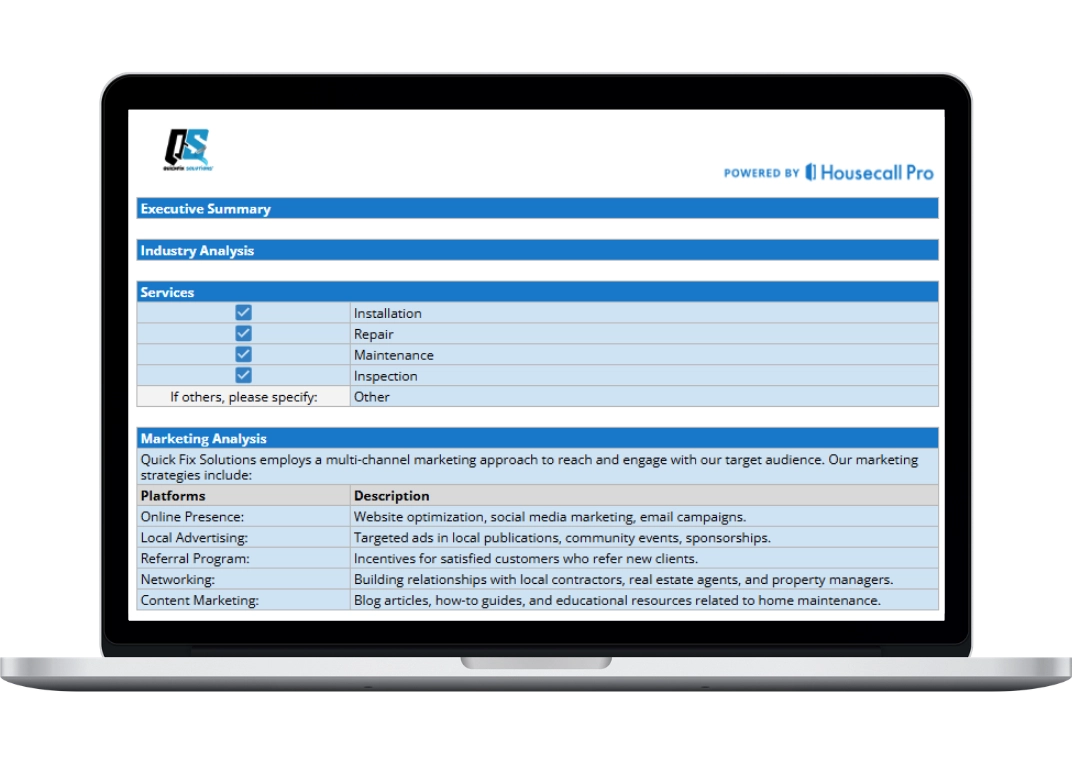
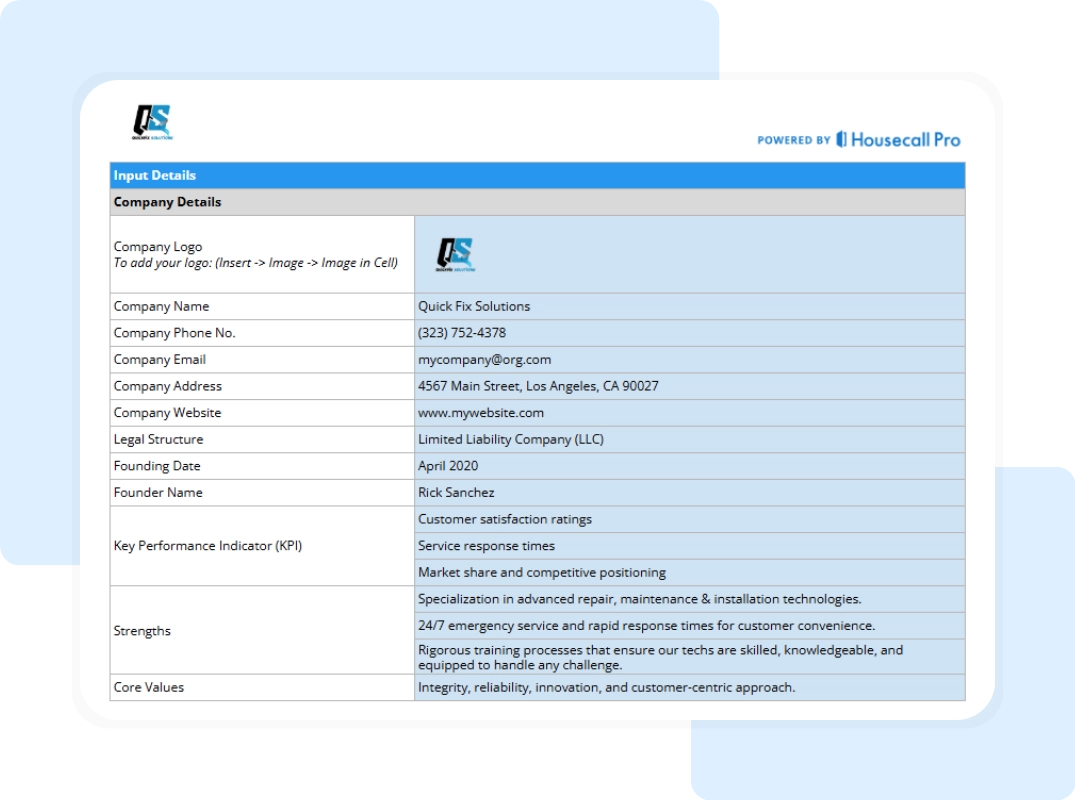
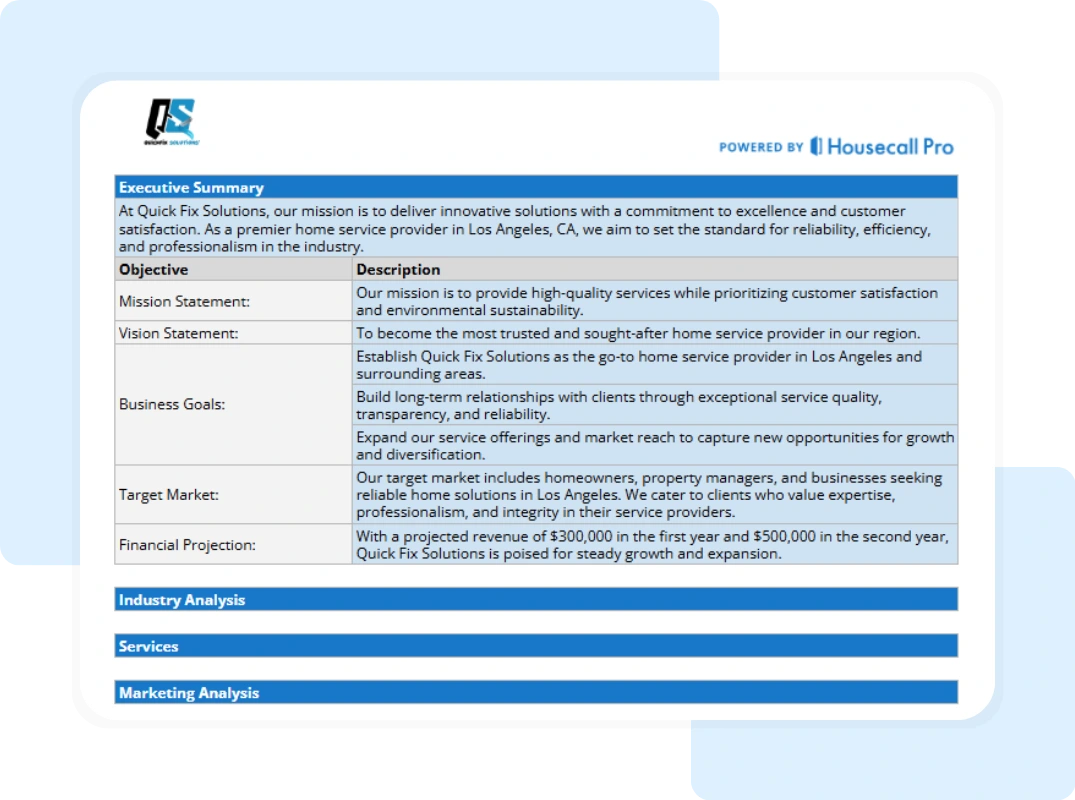
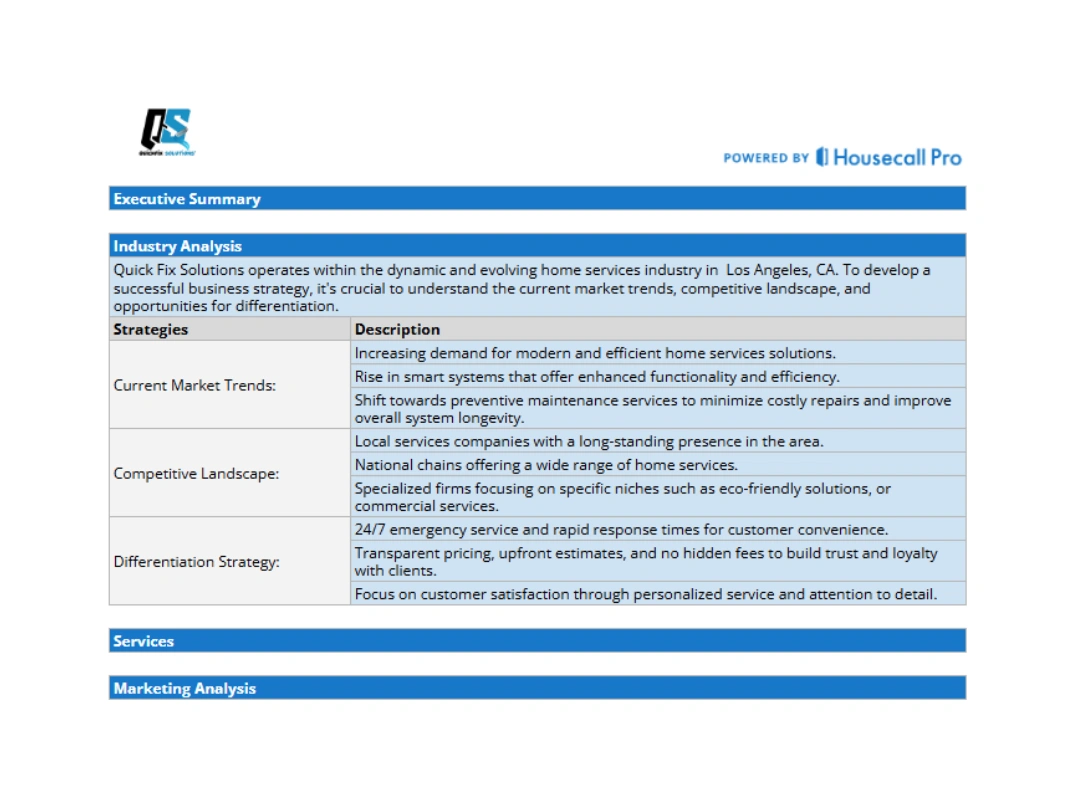
4. Services. What you actually do. Installation, repair, maintenance, inspection — and specialty offerings that set you apart.
5. Marketing Analysis. How customers find you. Online presence, local advertising, referral program, networking, content marketing. Every channel laid out so you know what’s working and what’s missing.
6. Customer Analysis. Who you serve. Homeowners. Property managers. Commercial accounts. The clearer you are here, the easier every other decision gets — pricing, marketing, hiring, all of it.
7. Organization and Management. Your org chart. Who runs operations, customer relations, and finance. Even if it’s just you wearing four hats today, writing it down forces you to think about which to hand off first.
8. Operational Plan. Workflow, equipment, staffing, training. How a job moves from inquiry to follow-up. The section that turns strategy into execution.
9. Financial Plan. Startup costs, revenue projections, break-even analysis, profit margin targets, financing. The section that gets a lender to say yes — or shows you whether the business pencils out.
10. Legal and Regulatory. Licenses, permits, insurance (general liability, workers’ comp, bond), compliance with state and local codes. The section that keeps the IRS, licensing board, and lawyers off your back.
The template covers all of it, in the order a real plan should flow.
A Step-by-Step Walk-Through of the Template
The template is a Google Sheet, so it works on any device with a browser. There’s also a printable blank version if you’d rather sketch things out on paper first or run a working session with a partner.
Before you do anything else, make a copy. The original sheet is shared as view-only so every user starts clean. Here’s how:
- Open the Google Sheet from the download link.
- Click File in the top-left menu.
- Select Make a copy. Save it to your Drive and rename it something like “[Your Company] Business Plan 2026.”
Once you have your own copy, the workflow is simple.
Step 1: Read the Instructions tab. First tab walks through the sheet structure. Light blue cells are yours to edit. Light grey cells contain formulas that pull from your inputs — leave those alone or things break.