Getting Started with Your Free Plumbing Purchase Order Template
This simple Google Sheet purchase order template helps you standardize material requests, ensuring a professional look and clear supplier expectations. Follow these steps to create professional POs for your plumbing business. For convenience, these instructions are also on the ‘Instructions’ tab in the Google Sheet
To get started, fill out the form on this page and hit download. You will receive an email containing a link to the Google Sheet, then you can follow the next steps.
Important First Step: Make a Copy of the Template Before you begin, you must save a copy of the Google Sheet to your own Google Drive. The original template you receive is view-only. This ensures every user starts with a clean, original version.
To make your own editable copy, simply:
- Open the Google Sheet.
- Go to the File menu in the top-left corner.
- Select Make a copy. Your new, editable version will open, and you can now follow the steps below.
Step 1: Customize Business & Vendor Information Open your copy and go to the “Company And Vendor Information” tab. Replace placeholders with your company’s name, address, contact details, and logo. Then, fill in the vendor’s name and contact person. Finally, add the shipping address, method, and expected delivery date.
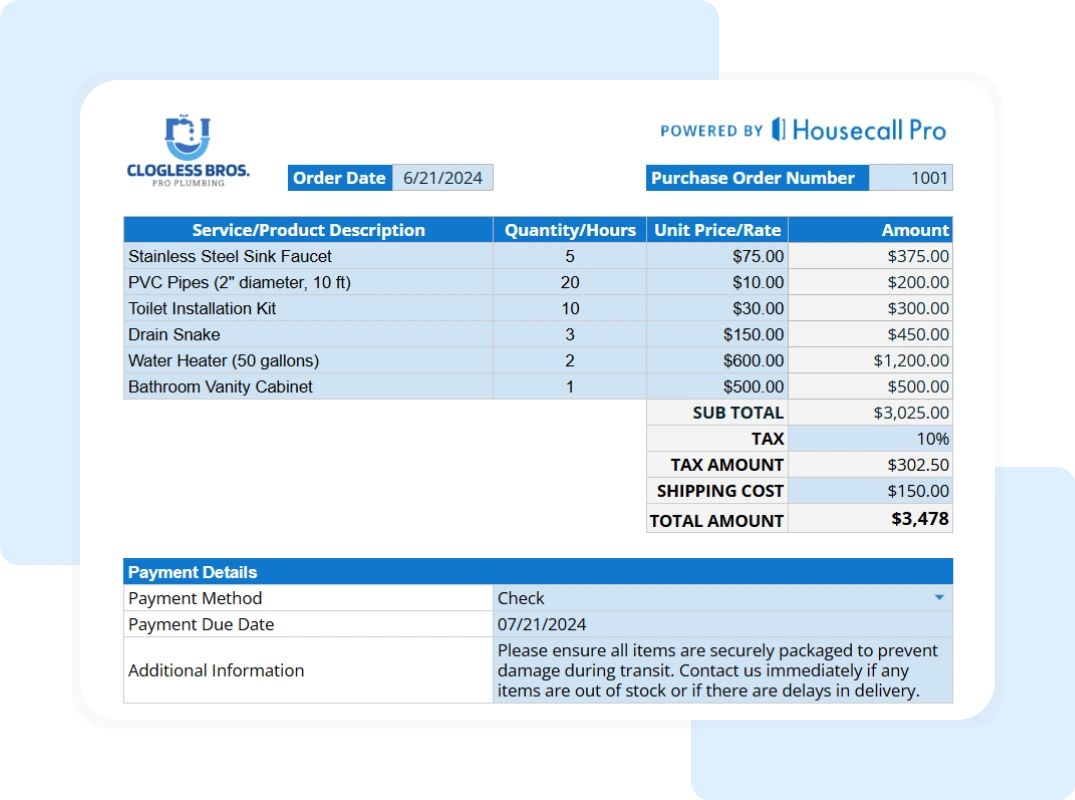
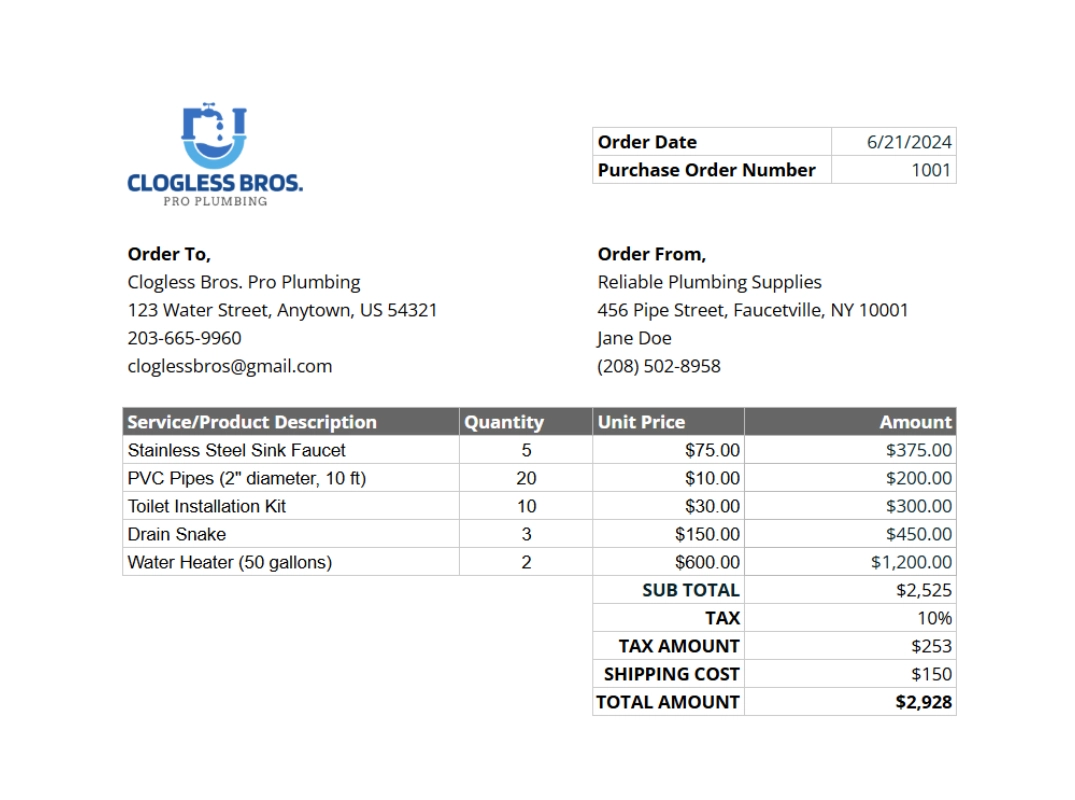
Step 2: Define Purchase Order Details Go to the “Purchase Order Details” tab. List each material with its “Service/Product Description,” “Quantity,” and “Unit Price.” The template auto-calculates line totals. After listing items, enter the tax percentage and shipping cost. The sheet then automatically calculates the subtotal, tax amount, and grand total.
Step 3: Review and Share Your Professional PO Once all details are entered, review the “Printable Report – Full Summary” tab for the clean, professional PO. Print it for your records. To save a digital copy, go to File > Download > PDF Document (.pdf). A PDF is non-editable, perfect for emailing suppliers.
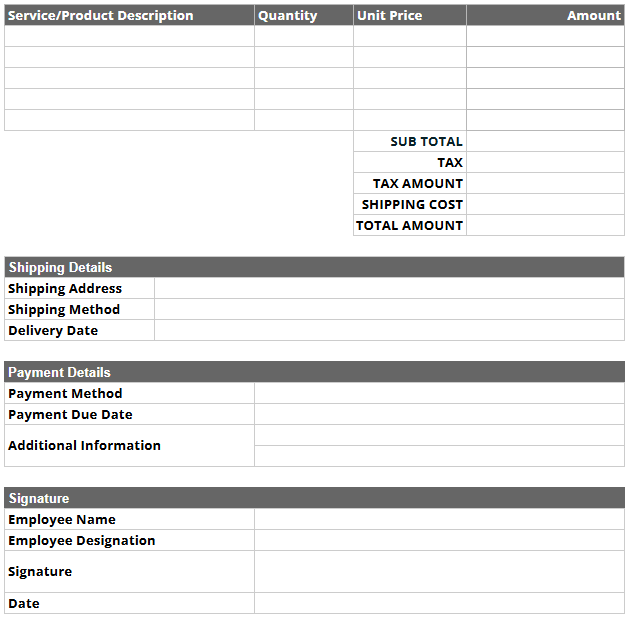
Step 4 (Optional): Print a Blank Copy for Manual Use If you need to write a PO by hand, the template includes a blank version. Go to the “Printable Report-Blank Summary” tab to print a copy for manual completion.