A Walk-Through of the Template
This template is a Google Sheet, which means you can use it anywhere — laptop, tablet, phone, or printed copy in the truck. There’s also a printable blank version included for situations where you’d rather quote on paper and transfer it later.
Before you do anything else, you need to make a copy. The template is shared as view-only so every user starts with a clean version. To get your own editable copy:
- Open the Google Sheet from the download link.
- Click the File menu in the top left.
- Select Make a copy. Save it to your Drive and rename it something like “Master Bid Proposal Template” so you can duplicate it for each new job.
Once you have your own copy, the workflow is straightforward.
Step 1: Fill in the Instructions tab (read it once). The first tab walks through how the sheet is structured. Light blue cells are yours to edit. Light grey cells contain formulas — leave those alone or things break. Read through it once and you’ll be set.
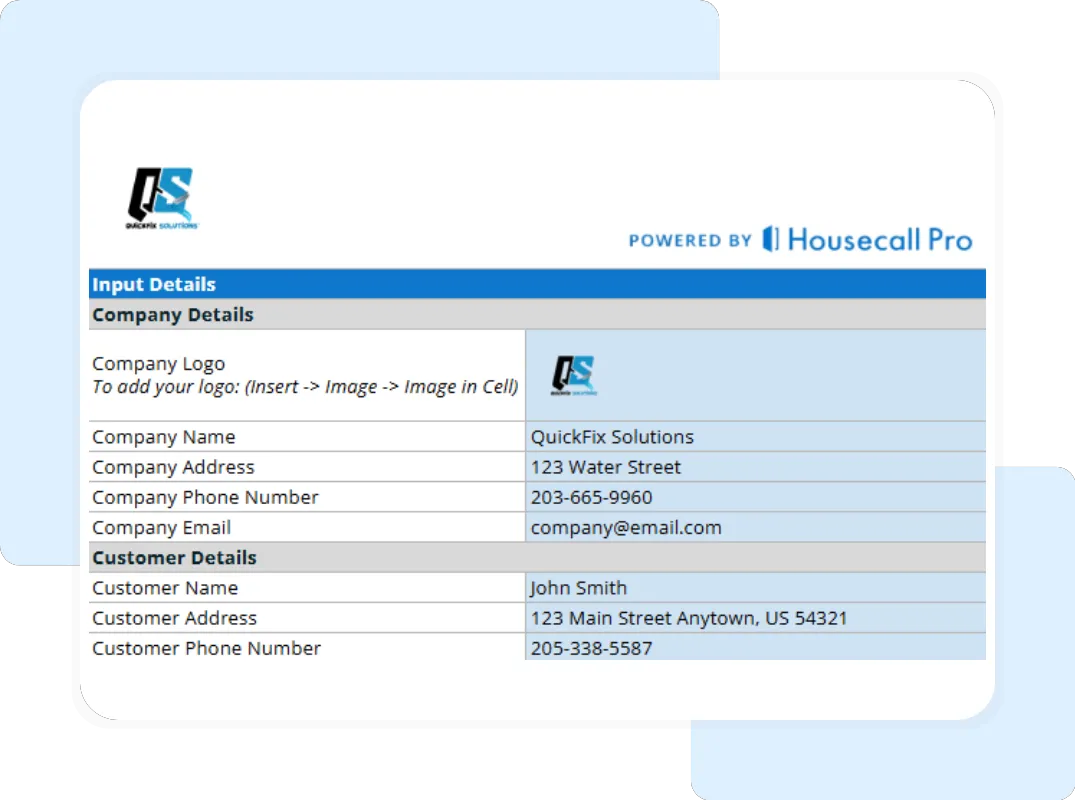
Step 2: Set up Company and Customer Information. This is the Company and Customer Information tab. Add your logo by going to Insert → Image → Image in Cell. Plug in your company details and the customer’s contact info. These values feed the rest of the document automatically.
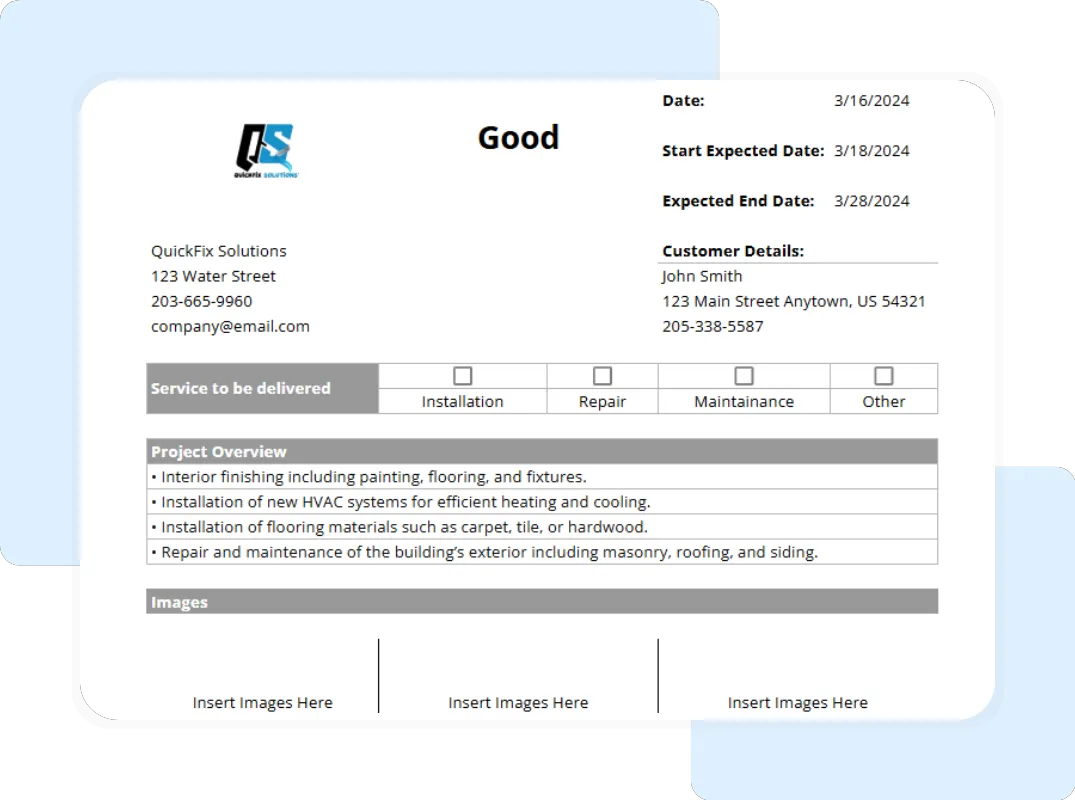
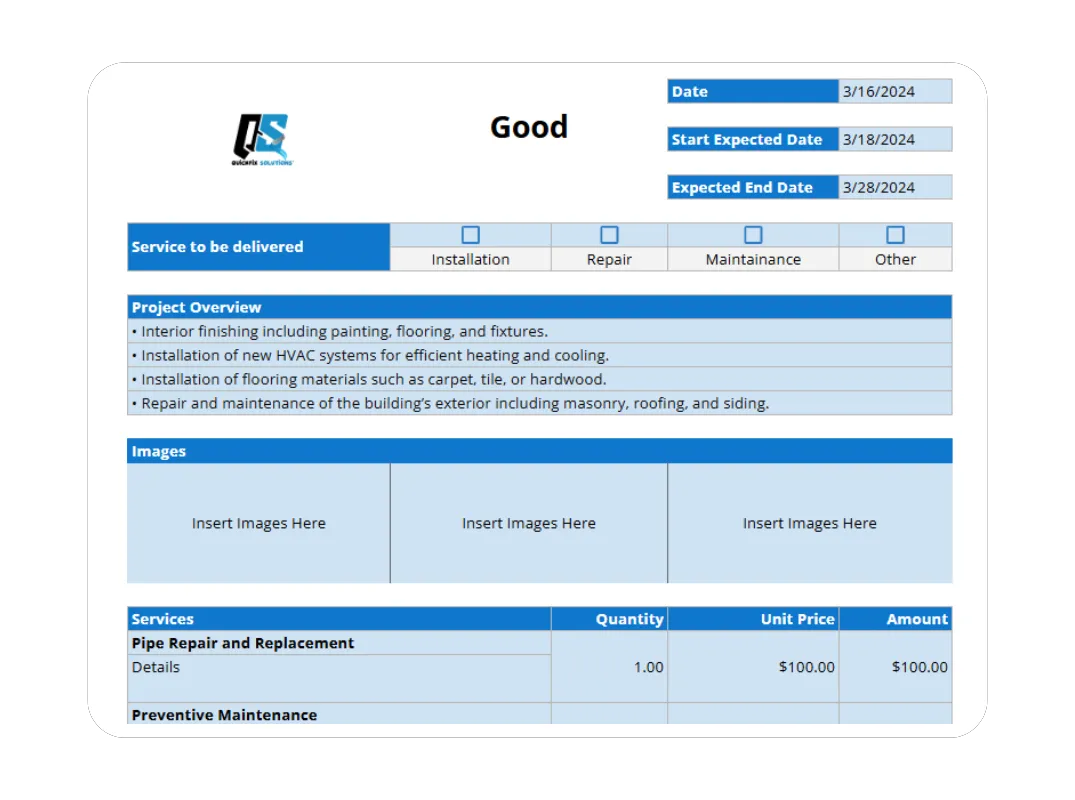
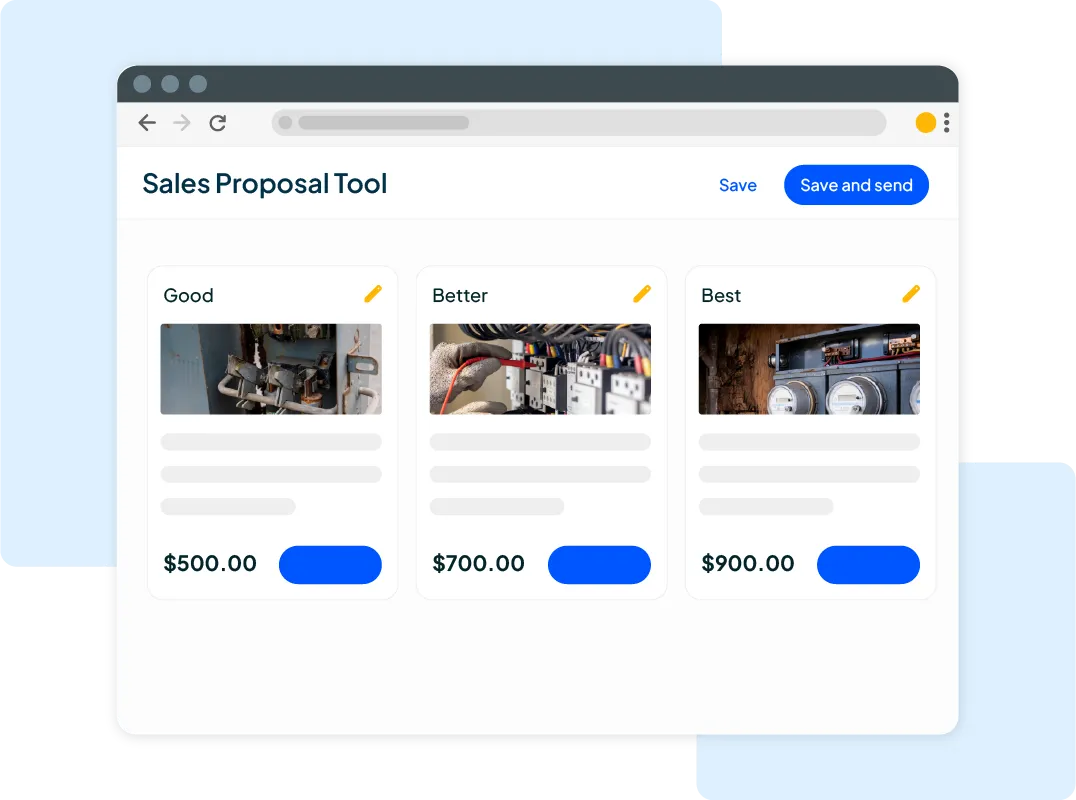
Step 3: Build out the Bid Proposal Details. Head to the Bid Proposal Details tab. You’ll see three sections: Good, Better, and Best. For each tier, fill in the proposal date, expected start and end dates, the service type, the project overview, and any images. Then list each service line with quantity and unit price. Misc. costs (permits, disposal fees, travel) get their own line. Total Cost calculates automatically.
Step 4: Review the Printable Report. The Printable Report – Full Summary tab is the customer-facing document. Everything you entered flows here — branding, customer info, pricing for all three tiers, terms, and signature blocks. Skim it for typos and pricing errors before sending.