Getting Started with Your Free Plumbing Receipt Template
Our Google Sheet receipt template is designed to be comprehensive yet simple, helping you standardize your billing for a professional look and accurate records. Follow these steps to build and issue professional receipts for your plumbing business. For your convenience, a copy of these instructions is also included on the ‘Instructions’ tab within the Google Sheet.
To get started, fill out the form on this page and hit download. You will receive an email containing a link to the Google Sheet, then you can follow the next steps.
Important First Step: Make a Copy of the Template Before you begin, you must save a copy of the Google Sheet to your own Google Drive. The original template you receive is view-only. This ensures every user starts with a clean, original version.
To make your own editable copy, simply:
- Open the Google Sheet.
- Go to the File menu in the top-left corner.
- Select Make a copy. Your new, editable version will open, and you can now follow the steps below.
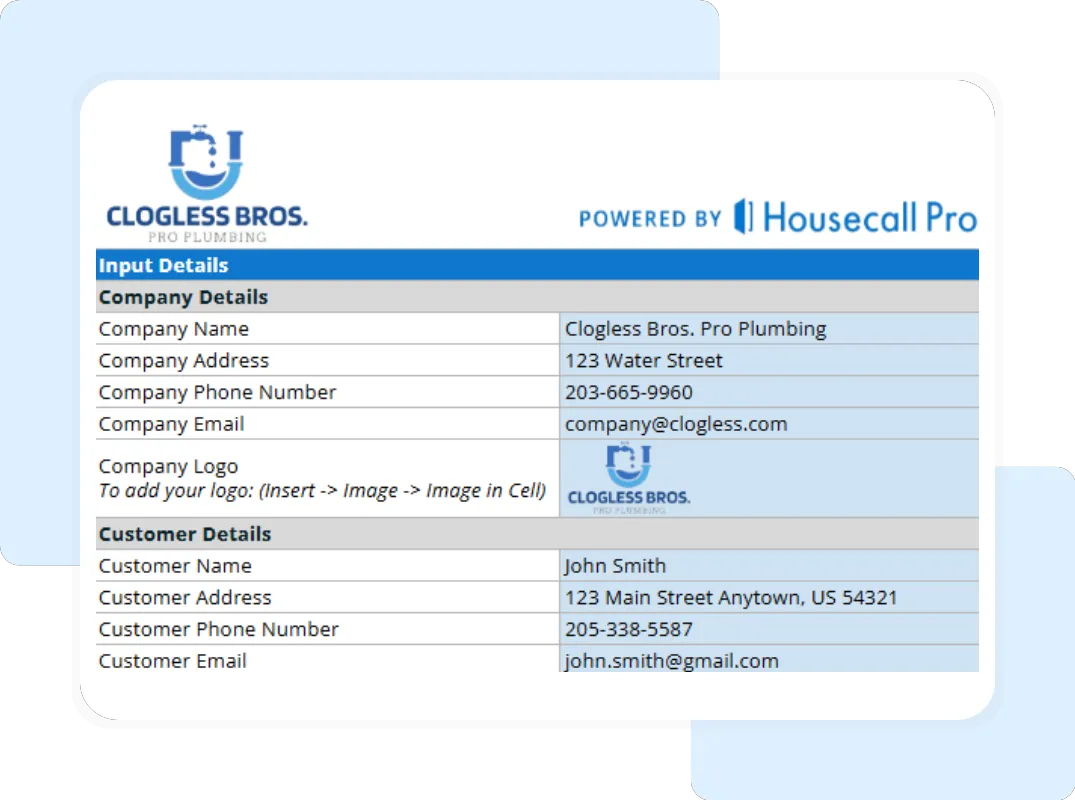
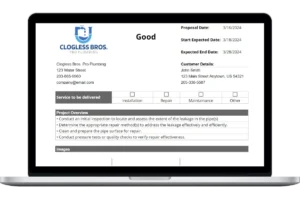
Step 1: Customize with Your Business Information Open your copied Google Sheet and navigate to the “Company and Customer Information” tab. Replace the placeholder information with your plumbing company’s name, address, and contact details. Here, you can also upload your company logo.
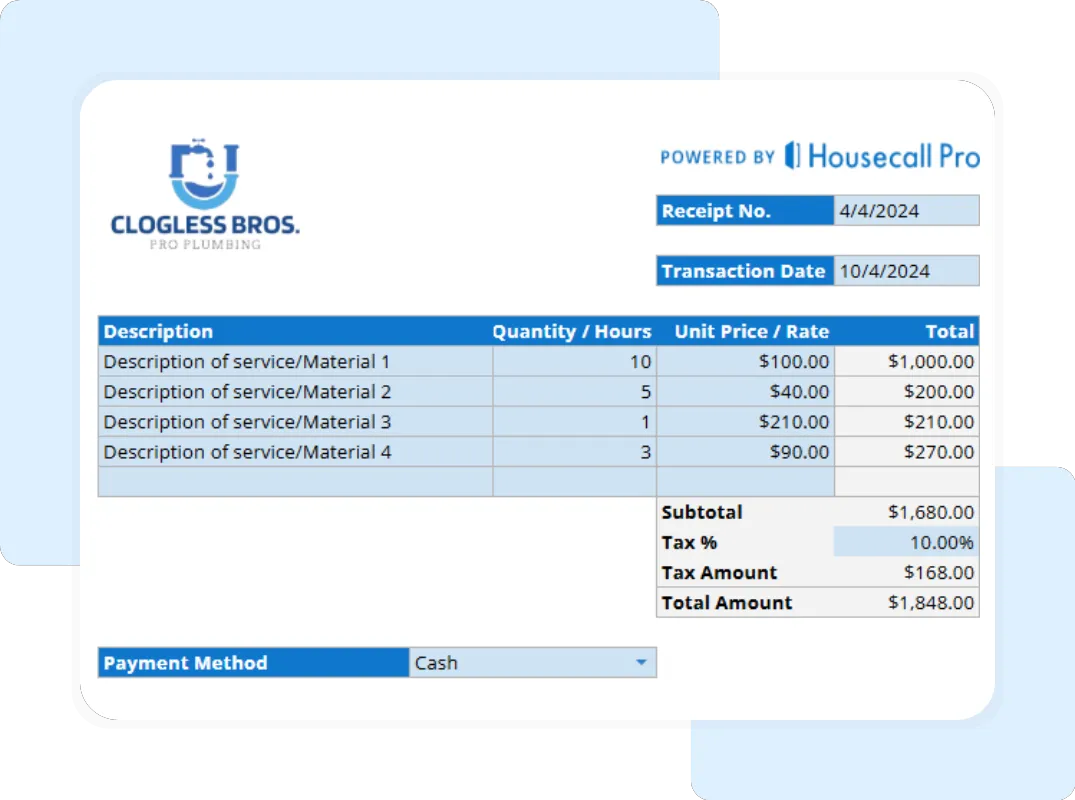
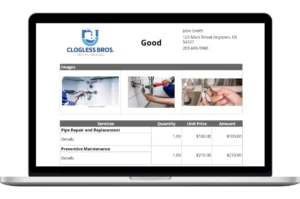
Step 2: Enter Receipt Details and Line Items To create a new receipt, first enter the specific transaction details on the “Plumbing Receipt Details” tab, including the customer’s name, a unique Receipt #, and the Date. Next, list each service rendered or part sold by entering an “Item Description”, the “Quantity”, and the “Unit Price” for each line.
Step 3: Enter Payment and Review Automatic Calculations The template instantly calculates the line total for each item and the subtotal. Enter your Tax Rate to see the final total. In the “Total Amount Paid” field, enter the amount the customer has paid. The template will automatically calculate the final “Balance Due.”