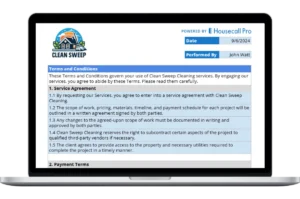
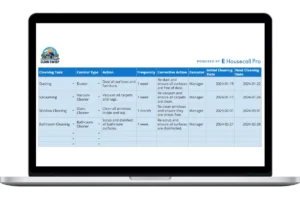
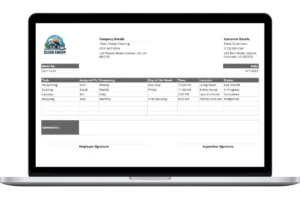
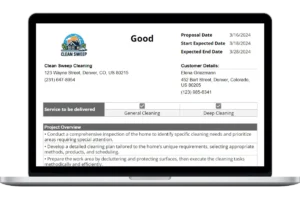
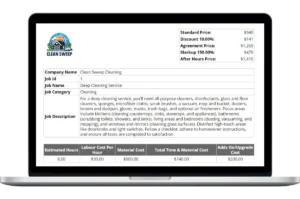
Important First Step: Make a Copy of the Template Before you begin, you must save a copy of the Google Sheet to your own Google Drive. The original template you receive is view-only, ensuring every user gets a clean version. To make your own editable copy:
- Open the Google Sheet.
- Go to the File menu in the top-left corner.
- Select Make a copy. Your new, editable version will open, and you can now follow the steps below.
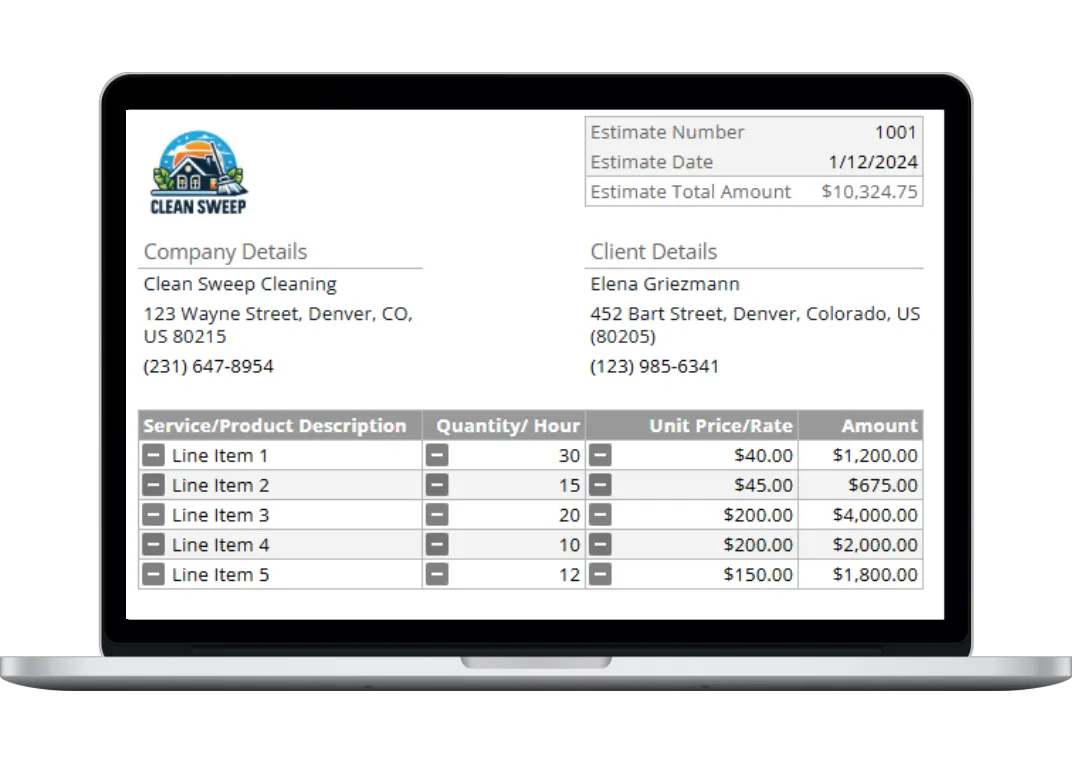
Step 1: Customize with Your Business Information Open your copied Google Sheet and go to the “Company And Customer Informatio” tab. Replace the placeholder logo and enter your company’s name, address, and phone number. Save this version as your master template.
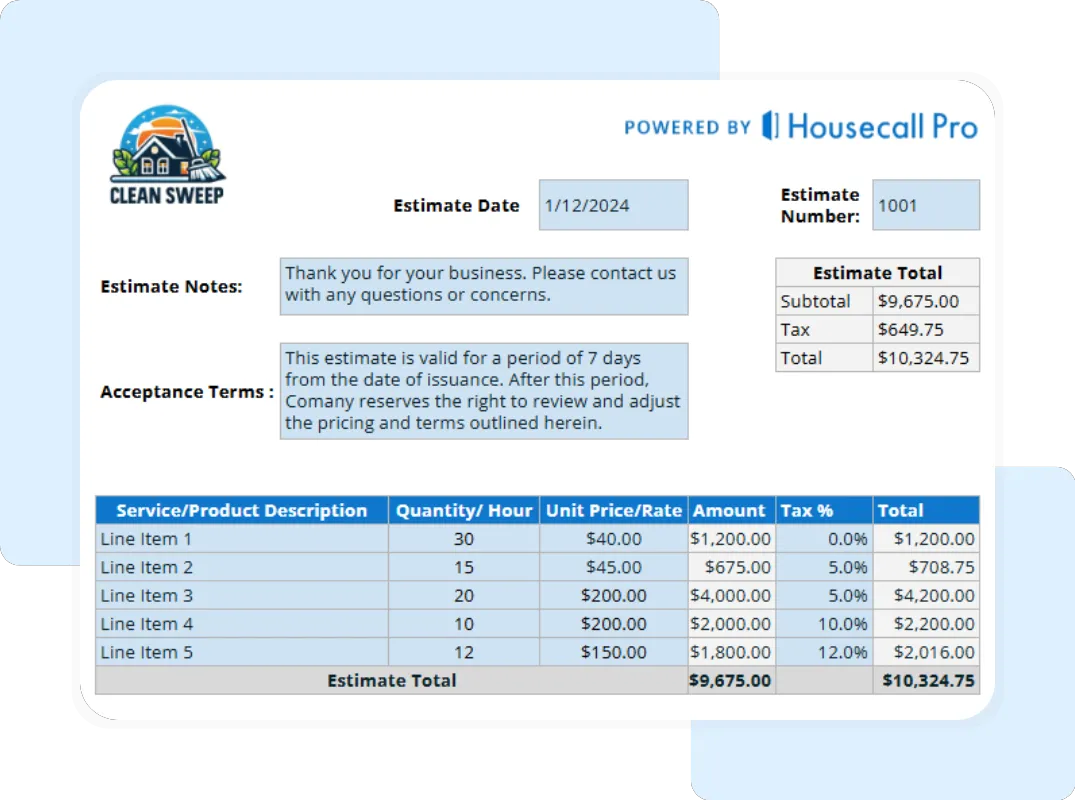
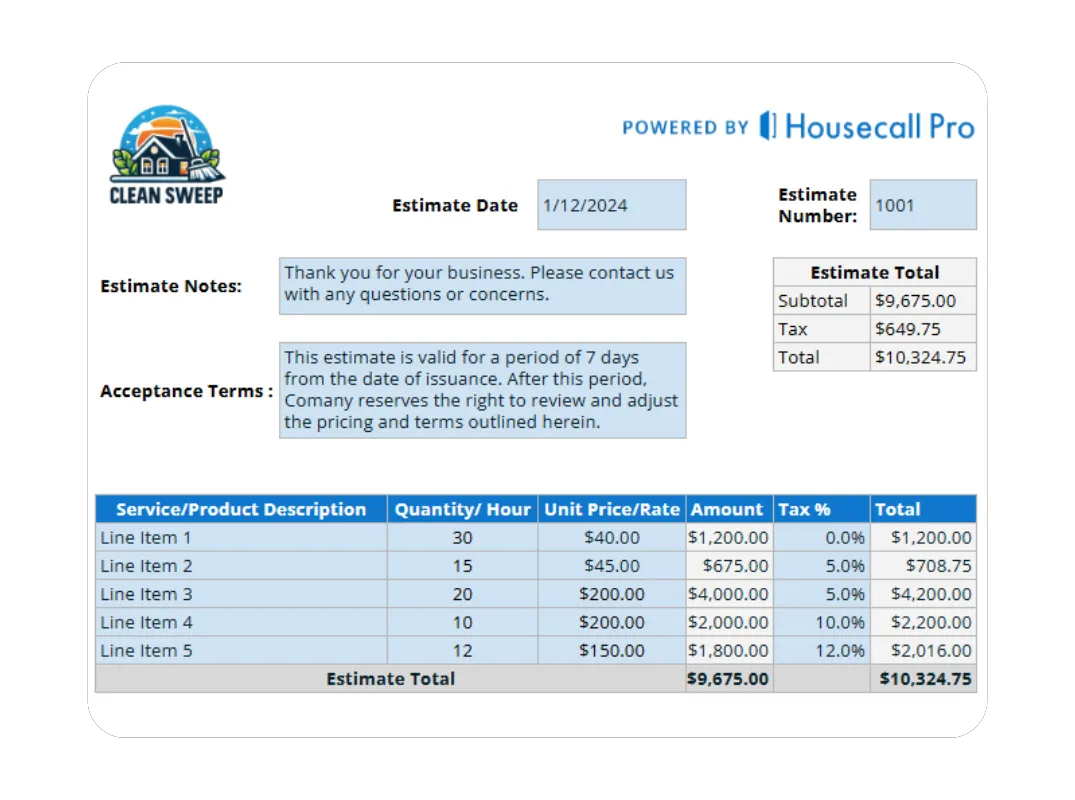
Step 2: Enter Client and Job Details For each new job, fill in the client’s information in the same tab. Then, move to the “Estimate Details” tab to assign an Estimate Number and Estimate Date.
Step 3: Detail the Services and Costs In the “Estimate Details” tab, use the itemized table. Create a new row for every service.
- Description: Write a clear description (e.g., “Move-Out Clean”).
- Qty & Price: Enter the Quantity/ Hour and Unit Price/Rate. The template calculates the line amount automatically.
- Tax: Enter the Tax % for that specific line if your local laws require tax on services.
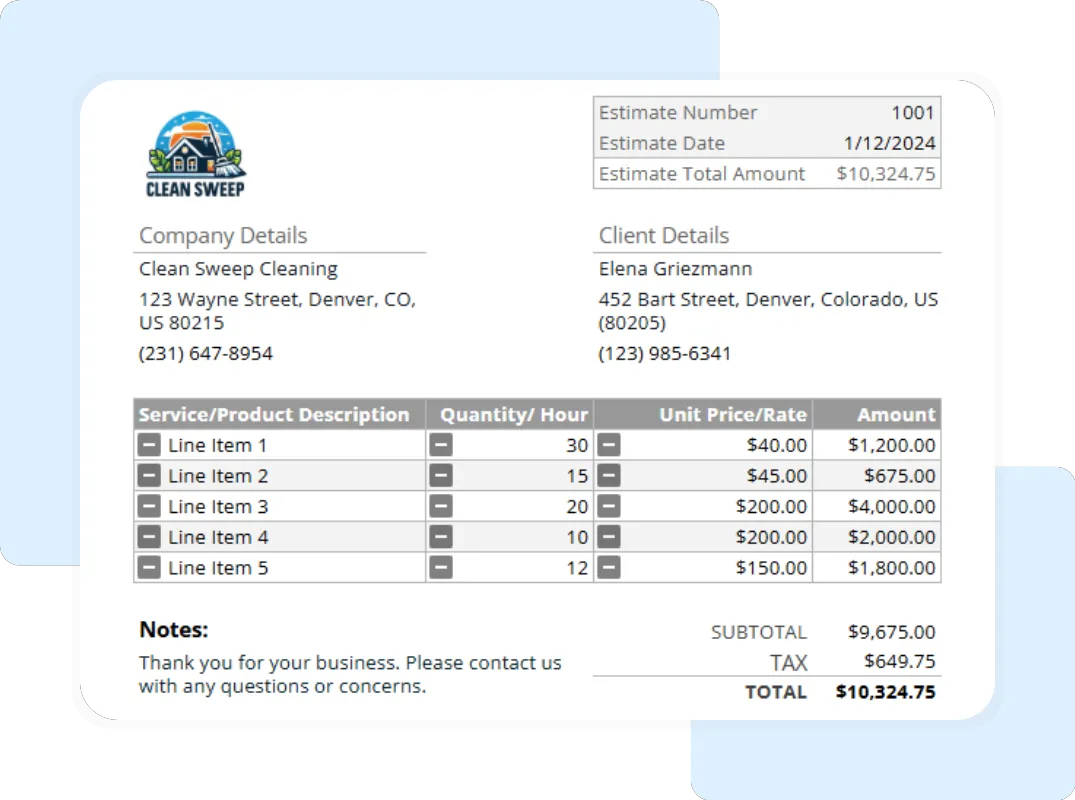
Step 4: Review and Send The template automatically calculates the Subtotal, Tax, and Total in the summary section. Review the “Printable Report – Full Summary” tab to see the clean version. To send it, go to “File” > “Download” and select “PDF Document (.pdf)“.
3 Ways a Professional Estimate Wins More Work
A great estimate does more than just quote a price; it’s a foundational tool for building a profitable cleaning business.