Getting Started with Your Free Service Agreement Template
Our Google Sheet agreement template is designed to be comprehensive yet easy to fill out. Follow these steps to create a professional, binding agreement for your next job. For your convenience, a copy of these instructions is also included on the ‘Instructions’ tab within the Google Sheet itself.
Important First Step: Make a Copy of the Template Before you begin, you must save a copy of the Google Sheet to your own Google Drive. The original template you receive is view-only. This ensures every user starts with a clean, original version. To make your own editable copy, simply:
- Open the Google Sheet.
- Go to the File menu in the top-left corner.
- Select Make a copy. Your new, editable version will open, and you can now follow the steps below.
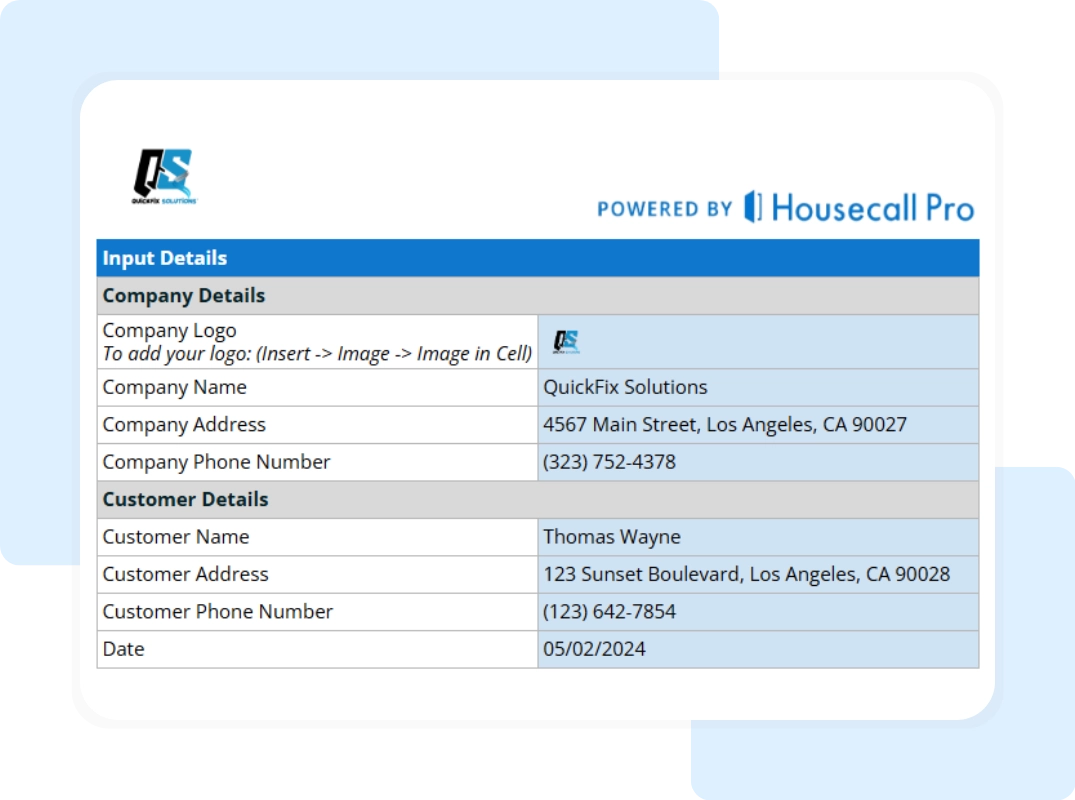
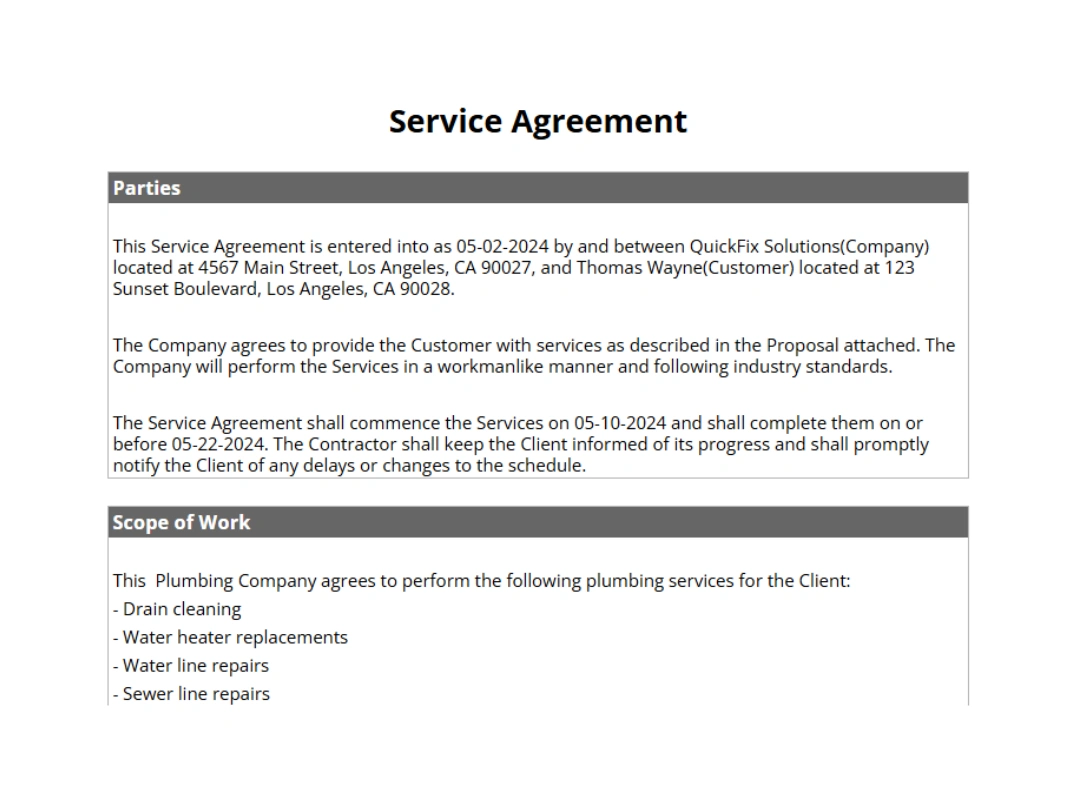
Step 1: Customize with Company and Customer Information Open the “Company and Customer Information” tab. Replace the placeholder logo and enter your company’s name, address, and contact info. Then, in the customer section, fill in the client’s name, address, and assign a unique customer number.
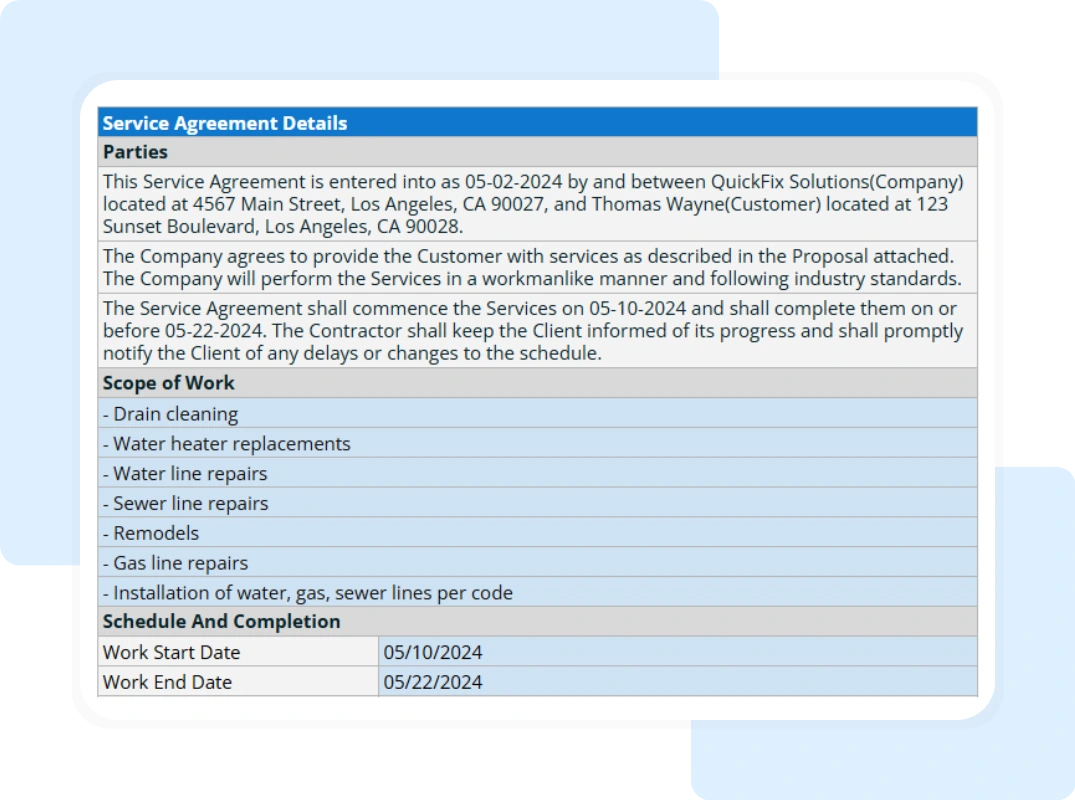
Step 2: Enter Agreement Details Go to the “Service Agreement Details” tab. Set the Date, then fill in the terms, including the Description of Services, Payment Terms, and the Start Date and End Date.
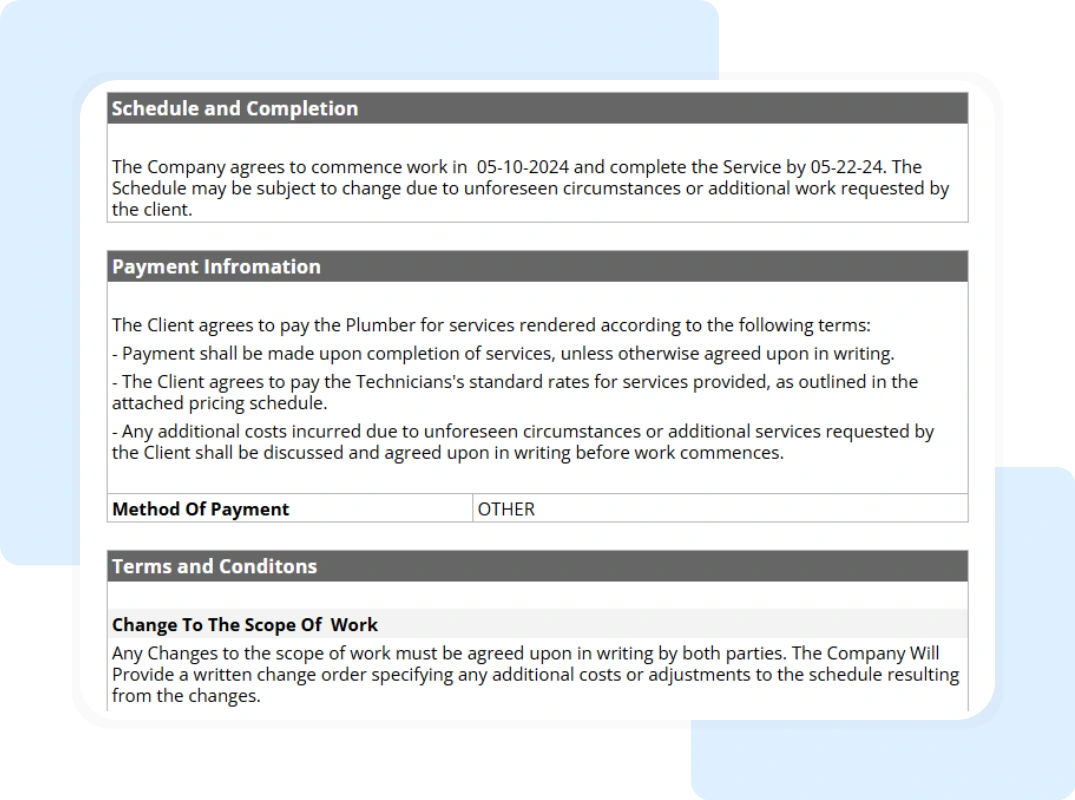
Step 3: Detail the Scope of Work and Payment Schedule On the “Service Agreement Details” tab, provide a detailed description of the services to be performed in the “Scope of Work” table. Then, fill out the “Payment Information” to define payment milestones, due dates, and amounts.
Step 4: Add Your Terms and Review the Automated Total Next, fill in the “Terms and Conditions” section with your business policies, warranties, and cancellation terms. The template will automatically calculate the “Total Agreement Value” at the bottom based on your entries, preventing manual math errors.
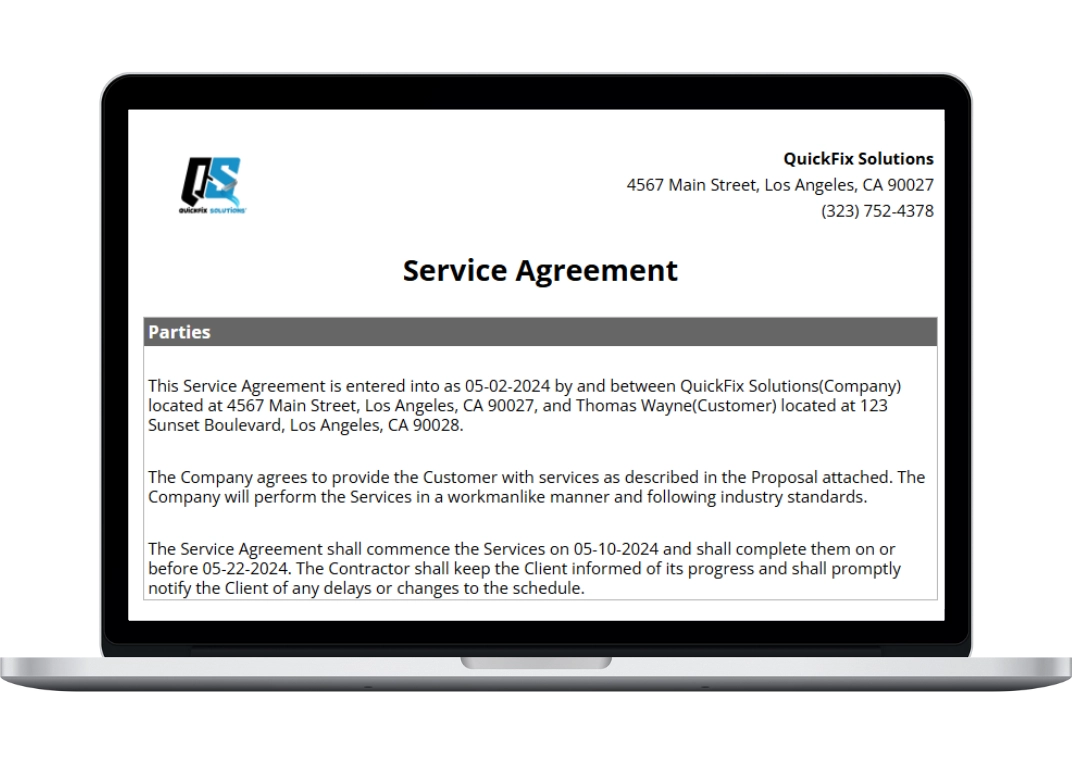
Step 5: Save and Send Your Professional Agreement Once all sections are complete, review the “Printable Report – Full Summary” tab to see the clean, professional version. To send it, go to “File” > “Download” and select “PDF Document (.pdf)“. A PDF is a non-editable format, perfect for sending to clients for signature.